Script Management
Overview
Script management refers to the systematic process of creating, organizing, storing, and maintaining scripts used in various aspects of IT operations.
Scripts are sequences of instructions or commands written in scripting languages such as:
- PowerShell
- Command batch
- Bash
These scripts automate tasks, perform specific functions, or configure systems.
Effective script management enhances:
- Efficiency
- Productivity
- Consistency
It reduces manual effort and minimizes errors by enabling automation across operations.
Scenario
David received reports that some computers in the New Jersey office are experiencing slowness during boot-up. CPU, memory, and network utilization appear normal.
As a last resort, David decides to clear cache files by running scripts remotely from his location in Brooklyn.
Script Creation
BEAK provides a collection of pre-defined, industry-standard scripts, but Admins can also create their own as needed.
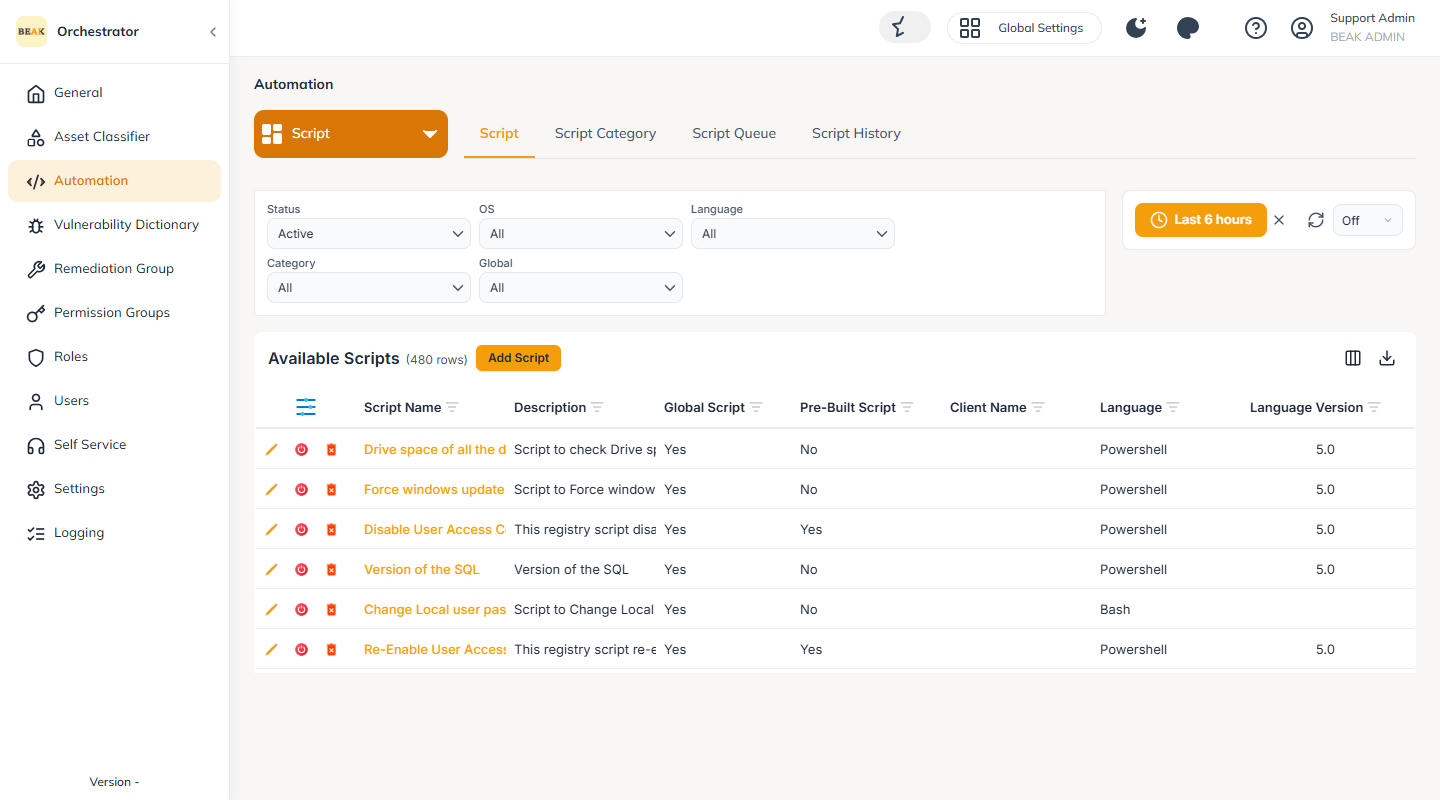
Scripts are managed on the Automation page under the Script page-group. Open Sidebar > Automation, set the page-group selector to Script and stay on the Script tab.
The Available Scripts list shows every script with its Global Script, Pre-Built Script, Language, OS and Script Category. Click Add Script to create a new one.
Global Level
Created in Global Settings > Automation > Script. Scripts created here:
- Can be used across all companies
Company Level
Scripts can also be created at the company level.
- These scripts are only visible within that specific company
- A script created in Company A will not appear in Company B
Script Creation Details
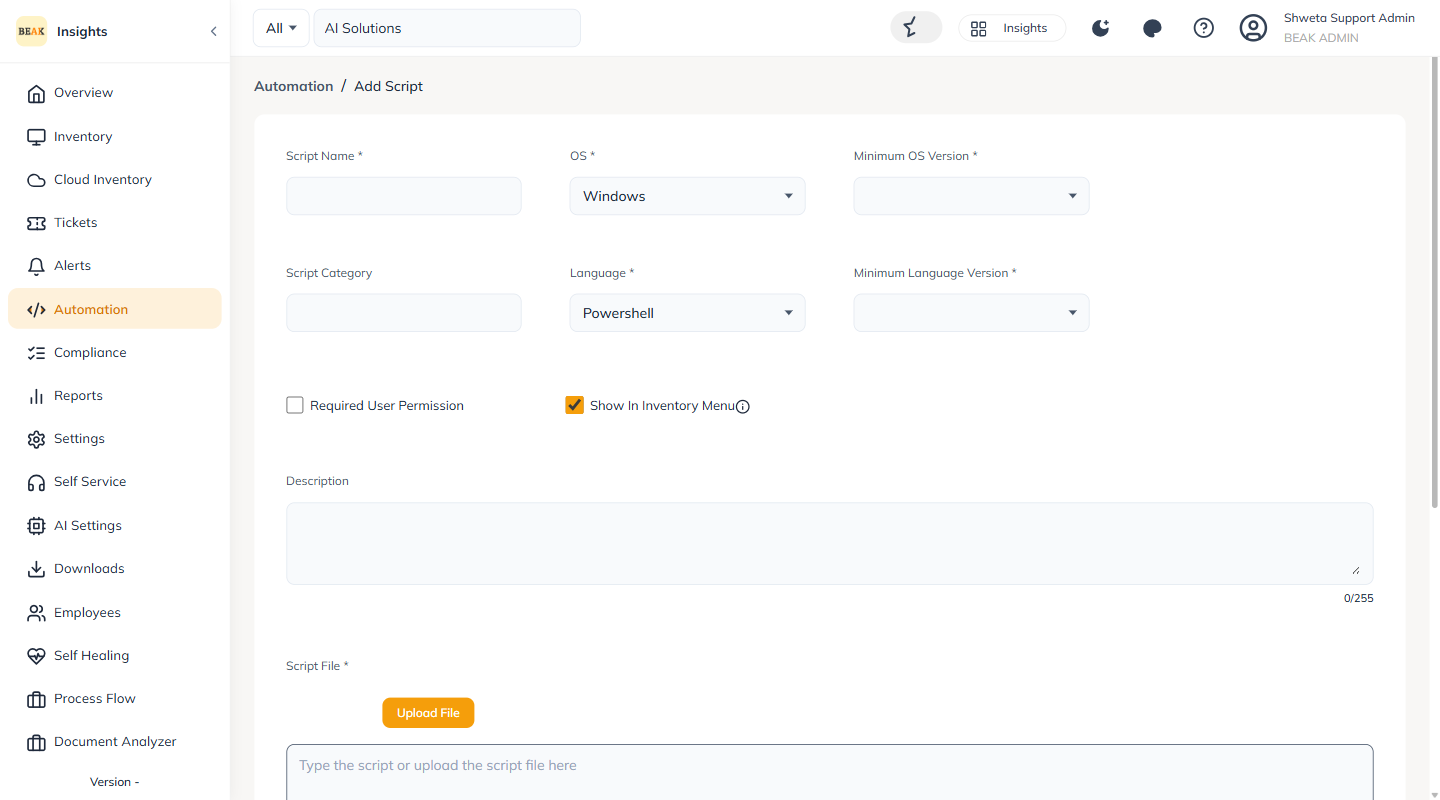
On the Add Script form, the following fields must be filled:
- Script Name — The name of the script
- OS — Target OS (Windows / MAC / Linux)
- Minimum OS Version — Compatibility constraint
- Script Category — Choose from existing categories or create your own
- Language — PowerShell or Command batch on Windows, Unix - Bash Shell on MAC and Linux, selected via the Script / Command radio
- Minimum Language Version — For example, the PowerShell version
- Show In Inventory Menu — When selected, the script appears in the Inventory menu
- Script File — Enter the script content directly or use Upload File
Variables
You can also define Variables for a script — for example an Output variable to capture a result as a Boolean, Number or Text value. This lets you fetch a value as the script's outcome.
Example:
To fetch PowerShell versions across assets:
- Select
Outputin Variable Type - Select
Numberin Value
This will display the PowerShell version as a numeric output.
Applying Scripts
A script can be applied at several levels. The run form is the same in each case.
Global Level
- Run a global script from Global Settings > Automation > Script
- Ideal for a global admin applying one script across companies
Company Level (via Automation Menu)
Run a script from a company's Automation > Script list.
Company Level (via Overview Tab)
Trigger the script from the company Overview page's script action.
Asset Level
Open the asset (Inventory > asset) and use the Apply Script action to run a script on that single asset.
- Only runs the script on that individual asset
- Asset classifier or asset selection options do not appear here, because the script is already scoped to that one asset
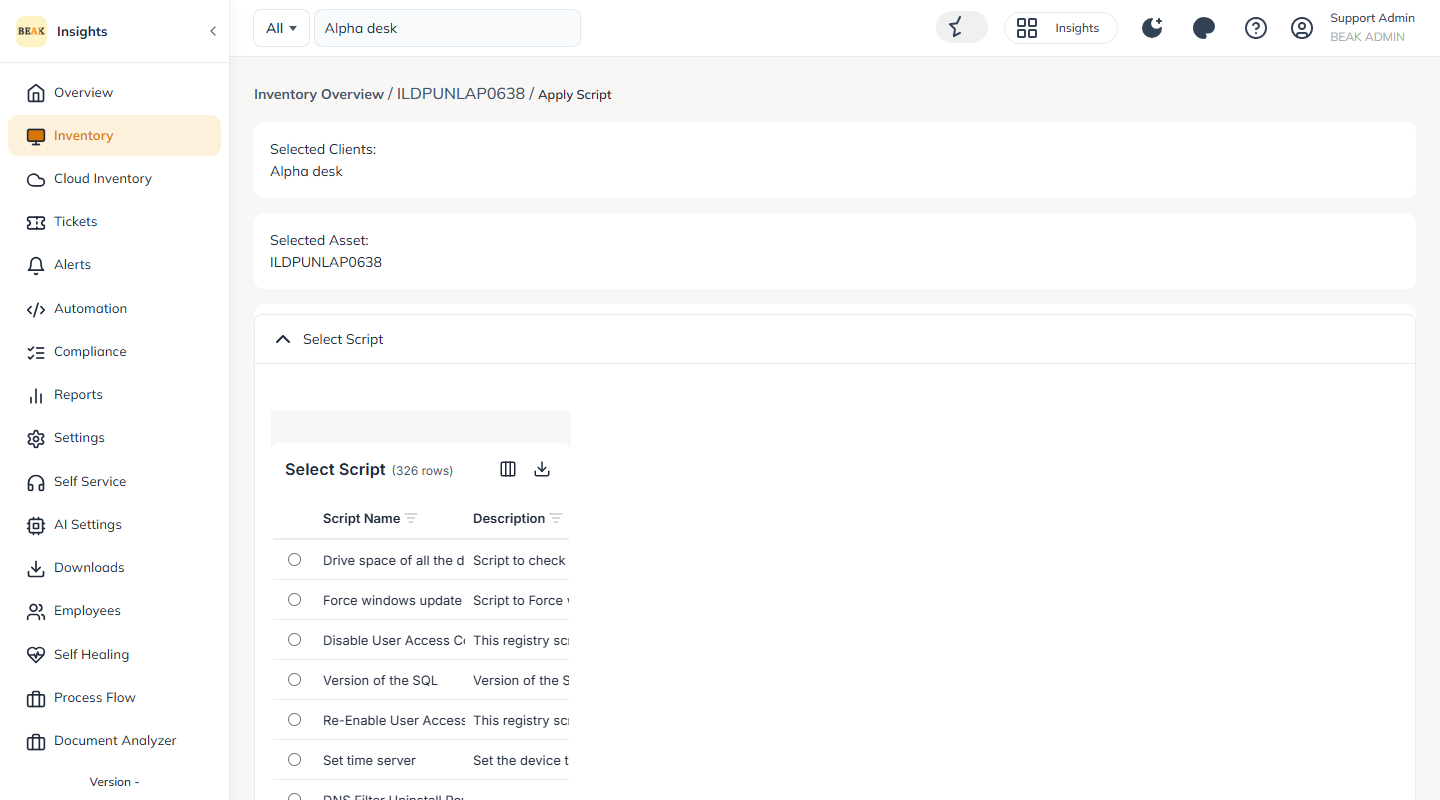
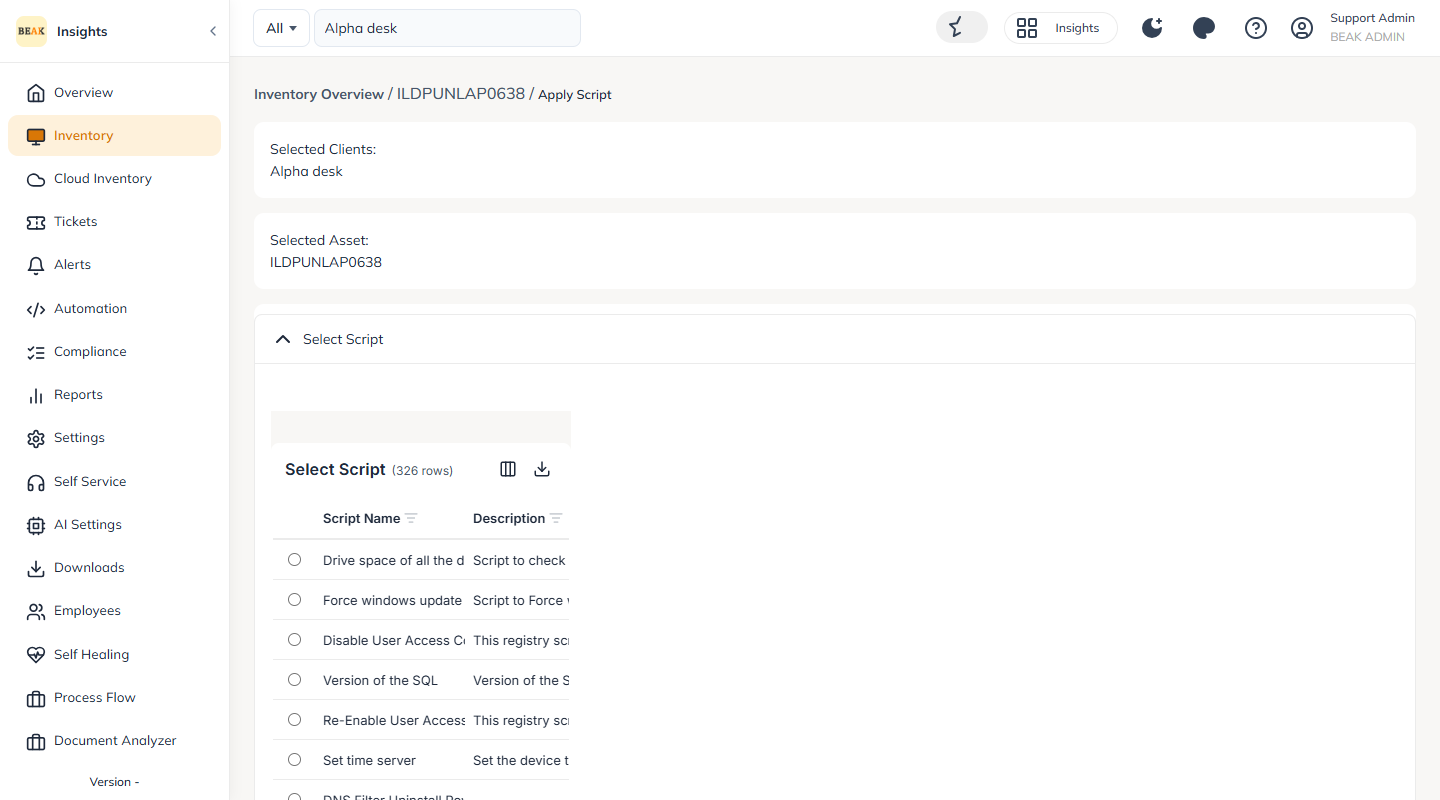
The run form lets you pick the script, then set the Scheduler (Run Now or Schedule) and any Additional Settings.
Script Job History
After a script has been applied, its status is available under Reports. Open Sidebar > Reports and select the Script category.
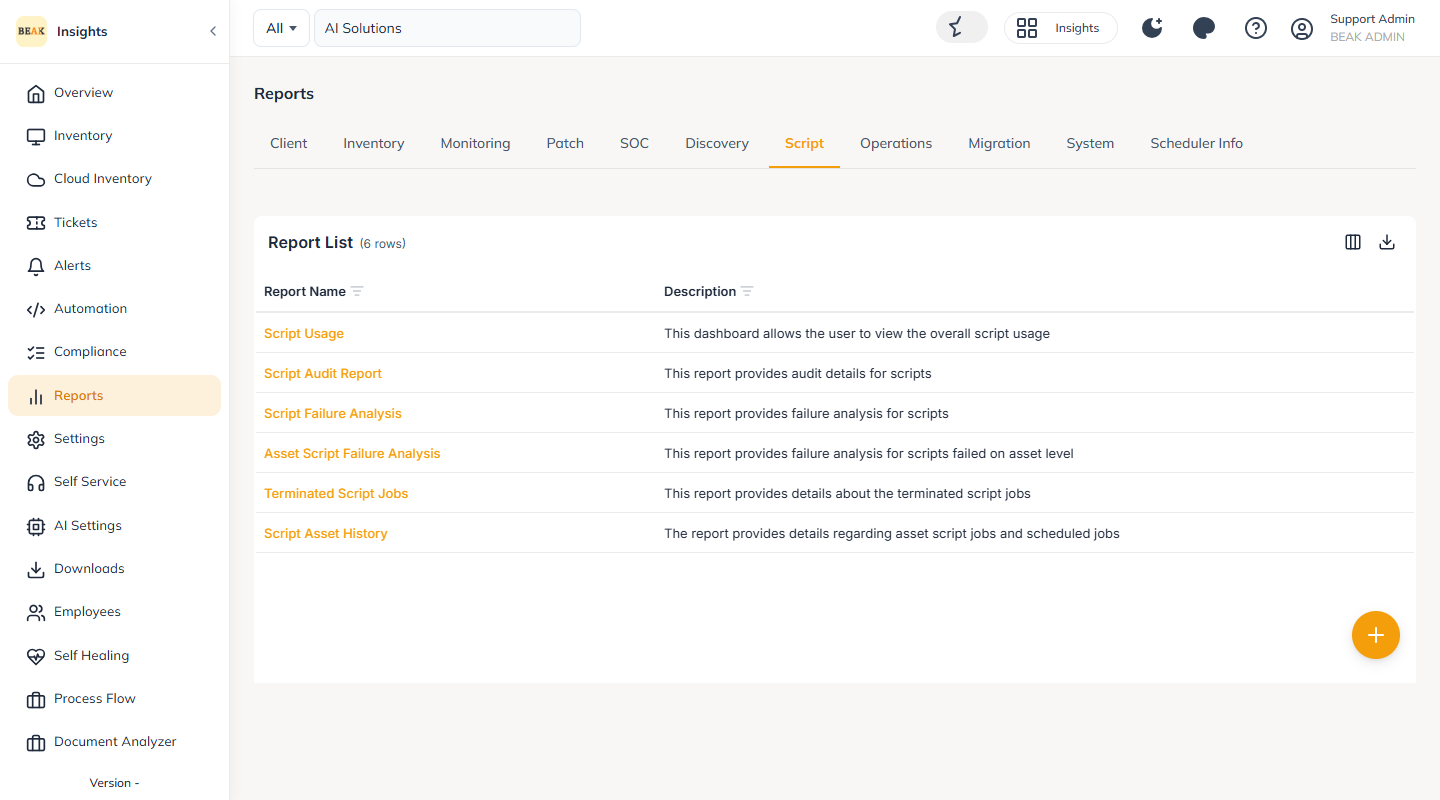
The following script reports are available:
- Script Usage — Where and how often each script has run
- Script Audit Report — The audit trail of script activity
- Script Failure Analysis — Failures grouped by script
- Asset Script Failure Analysis — Failures grouped by asset
- Terminated Script Jobs — Jobs that were terminated before completion
- Script Asset History — Per-asset history of the scripts applied
Each report shows the script job, the assets it ran on, and its outcome — including the logs and output returned by the script.
Note:
Scripts created at Global level can be used across all companies but are modified only at the Global level. Scripts created at Company level are company-specific — a script created for Company A is not visible under Company B.
Script Access Matrix
| Script Level | Usable Across Companies | Modifiable at Global | Modifiable at Company | Visible at Global | Visible at Company |
|---|---|---|---|---|---|
| Global Level | ✅ Yes | ✅ Yes | ❌ No | ✅ Yes | ✅ Yes |
| Company Level | ❌ No | ✅ Yes | ✅ Yes | ✅ Yes | Company-specific |