Remote Assist Service (RAS)
Overview
Remote Assist Service allows support technicians to remotely access and control a user's desktop, laptop, or workstation. This capability enables technicians to troubleshoot issues, configure settings, and perform tasks as if they were physically present at the user's location.
Scenario
A new office for ABC Company has opened in Vietnam. Since English is used only as a second language there, most employees have difficulty communicating technical issues clearly. As a result, most computer and network problems remain unresolved.
David, based elsewhere, can take a remote session on the Vietnam office computers and resolve issues directly—saving hours of explanation and calls.
Types of Remote Sessions
Remote Screen
Remote Screen Access provides real-time visibility and control of the user's actual desktop screen. The technician can interact with the system as though sitting in front of it.
Initiating Remote Screen
Remote screen access can be initiated from:
-
Inventory Menu
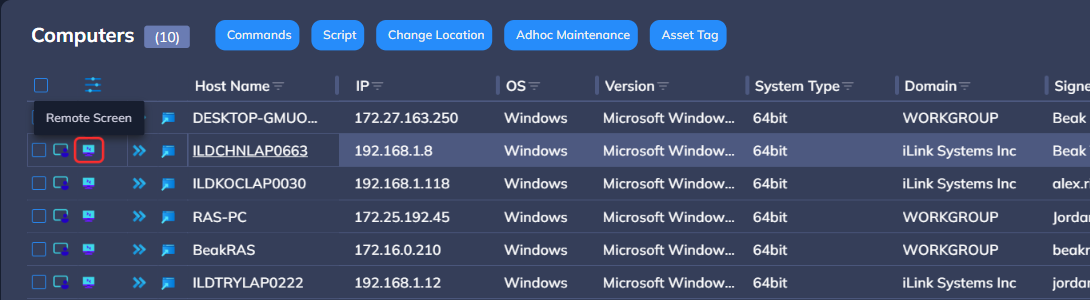
-
Asset Level
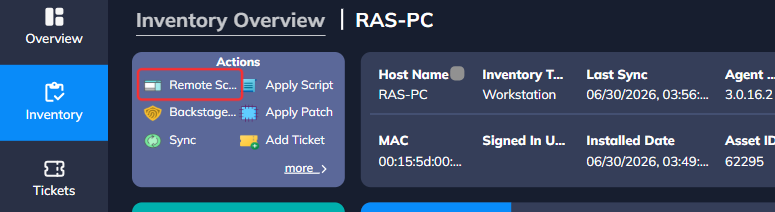
Example of Remote Session View
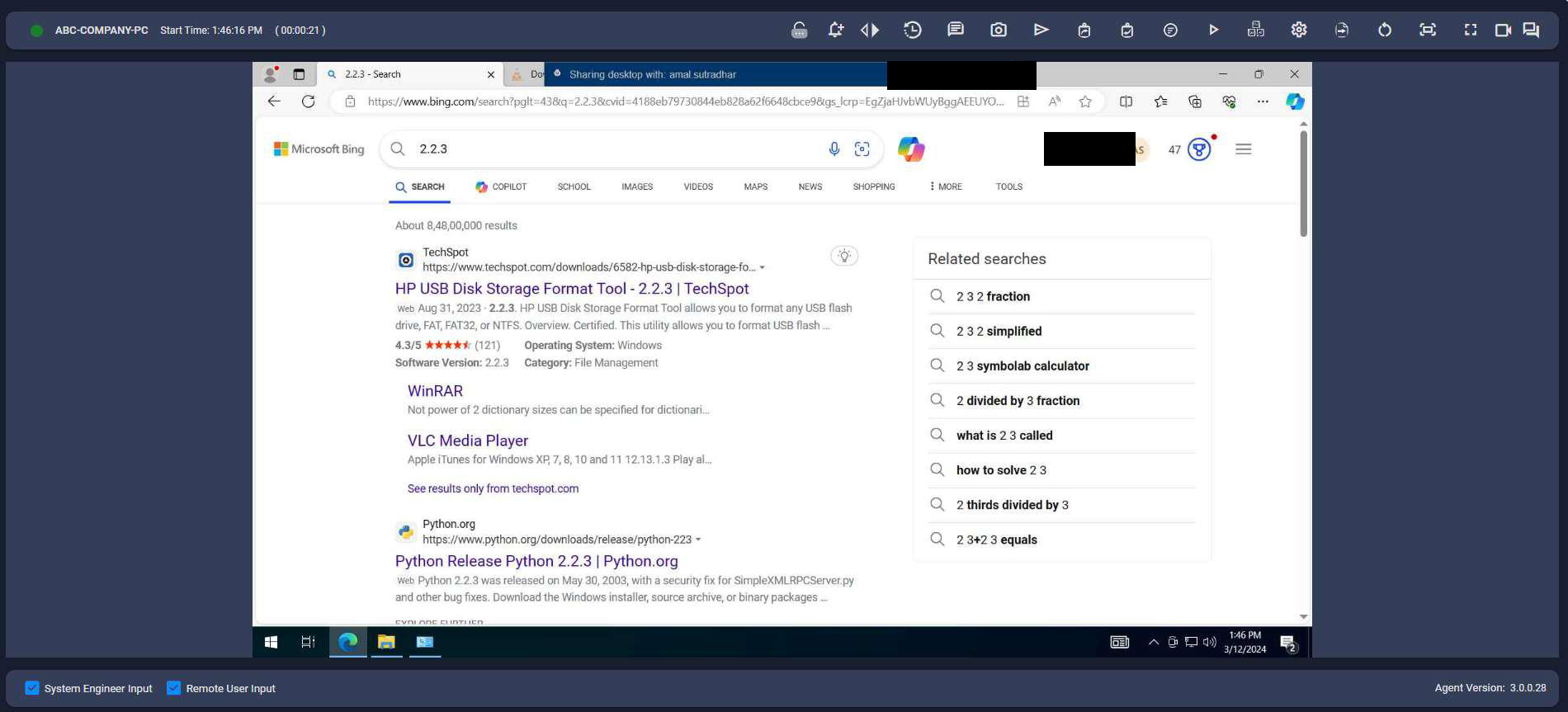
Available Actions During Remote Screen Session
| Icon | Description |
|---|---|
 | Send Stored Credentials — Send stored login info even on lock screen. Also used for Admin-required tasks. |
 | Prompt to Store Credentials — Prompts user to store login info; tests and stores it securely for session use. |
 | Switch User — Switch between multiple user profiles on the system. |
 | End Session — End session with options like Lock Asset / Logoff / End Session. |
 | Display Notification — Send a notification message to the remote screen. |
 | Save Screenshot — Save a screenshot of the remote session. |
 | Send Keystroke — Send copied values or clipboard content, including on lock screen. |
 | Send Clipboard — Copy content from technician’s device to remote system. |
 | Get Clipboard — Copy content from remote device to technician’s clipboard. |
 | Windows + R — Opens the Windows “Run” dialog for quick access. |
 | Run Commands — Execute commands on the remote device. |
 | Send CTRL+ALT+DELETE — Lock, Switch User, Sign Out, Task Manager, etc. |
 | Screen Actions — Adjust quality, scaling, and frame rate. |
 | Send Files — Transfer files from remote to technician device. |
 | Device Actions — Reboot, safe mode, power off, wake up. |
 | Fit Screen — Fit screen to desk aspect ratio. |
 | Full Screen — View remote session in full screen. |
 | Close Full Screen — Exit full screen mode. |
 | Chat Option — Chat, call, send files, save chat logs. |
Additional Session Controls
The following table contains additional session-level controls that are crucial for full control.
| Icon | Description |
|---|---|
 | Record Session — Record session to a file. |
 | Custom Keystrokes — Shortcut keys for efficient navigation. |
 | System Engineer Input — Enable/disable engineer input. |
 | Remote User Input — Enable/disable remote user input. |
Backstage Access
Backstage access allows a technician to interact with specific subsystems without screen sharing.
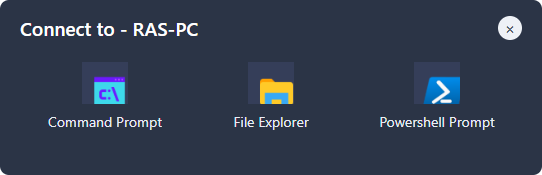
It includes:
-
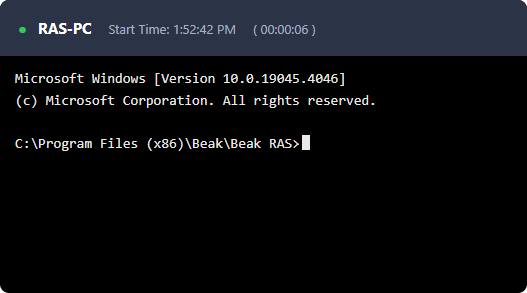
Command Prompt — access the Command Prompt window on the computer
-
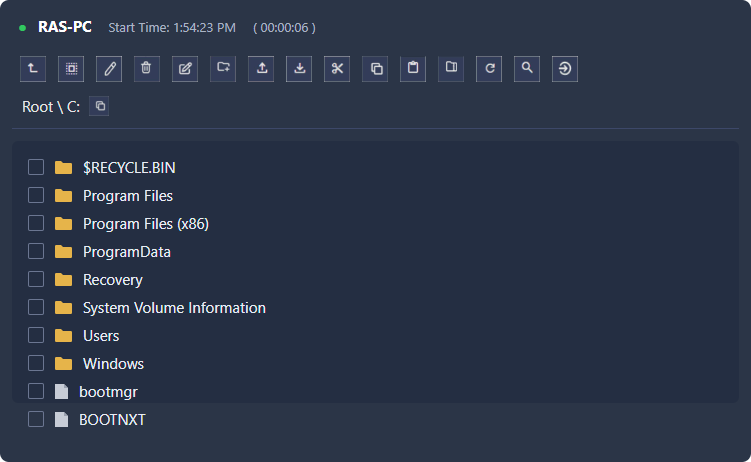
File Explorer — access the files and folders on the computer
-
PowerShell Prompt — access the PowerShell window on the computer
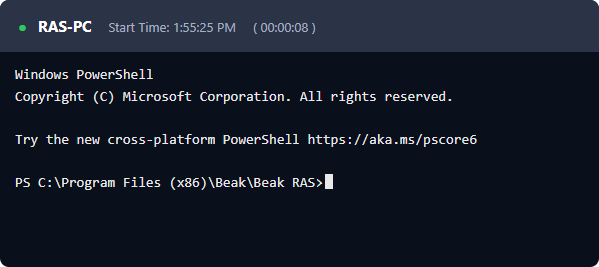
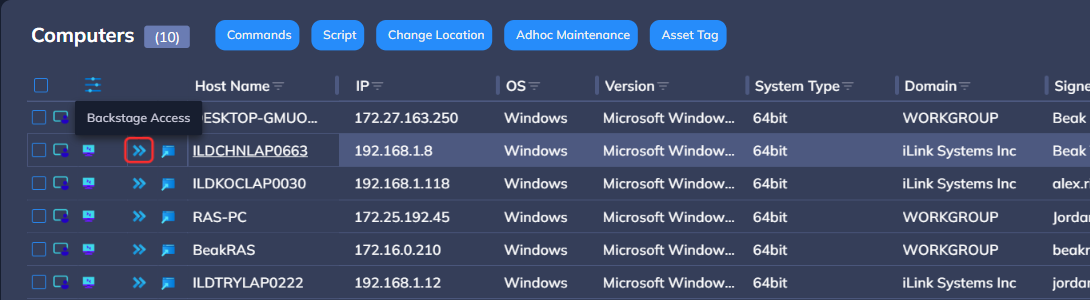
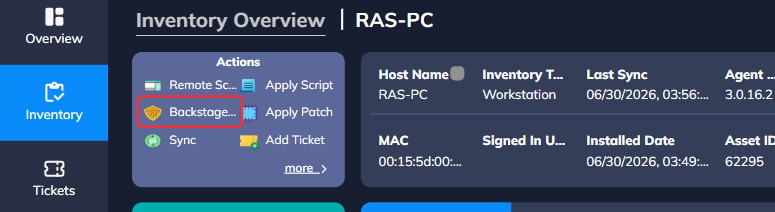
Initiating Backstage Access
Backstage sessions can also be started from:
-
Inventory Menu
-
Asset Level
Backstage Access Actions
| Icon | Description |
|---|---|
 | UP — Undo one step. |
 | Select All — Select all files and folders. |
 | Rename — Rename selected file/folder. |
 | Delete — Delete selected file/folder. |
 | Edit Note — Edit selected text file. |
 | Create Folder — Create new folder. |
 | Upload — Upload file from technician to remote system. |
 | Download — Download file from remote system. |
 | Cut — Cut selected file/folder. |
 | Copy — Copy selected file/folder. |
 | Paste — Paste copied file/folder. |
 | Folder Zip — Zip selected folder. |
 | Refresh — Refresh file view. |
 | Search — Search files and folders. |
 | Go to — Navigate to folder path. |
 | Open — Open selected file/folder. |
 | Sort — Sort by name, size, or date. |
 | Send Files — Transfer files via terminal or PowerShell. |
RAS Settings
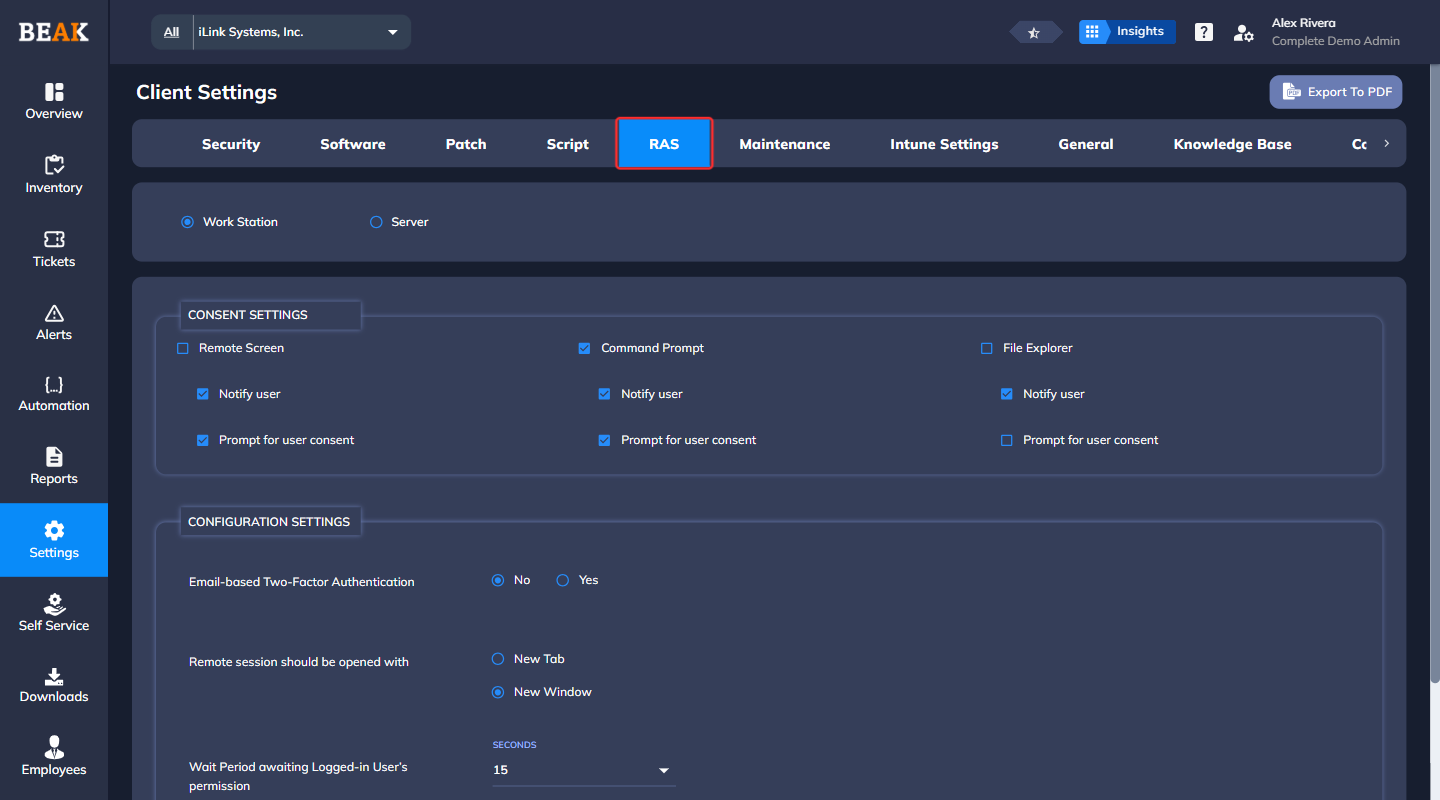
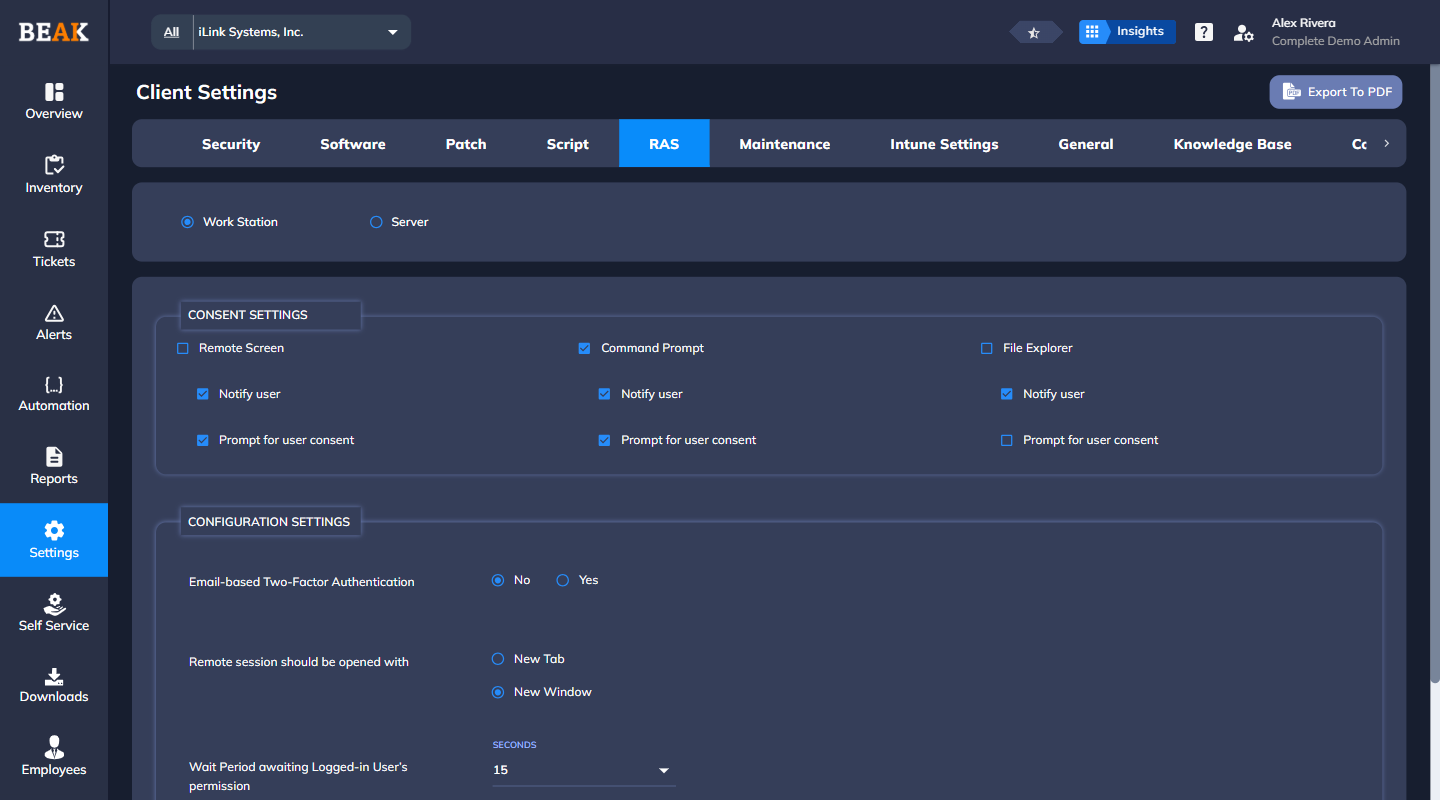
RAS settings can be configured at multiple levels:
-
Global Level (Admin only)
-
Company Level
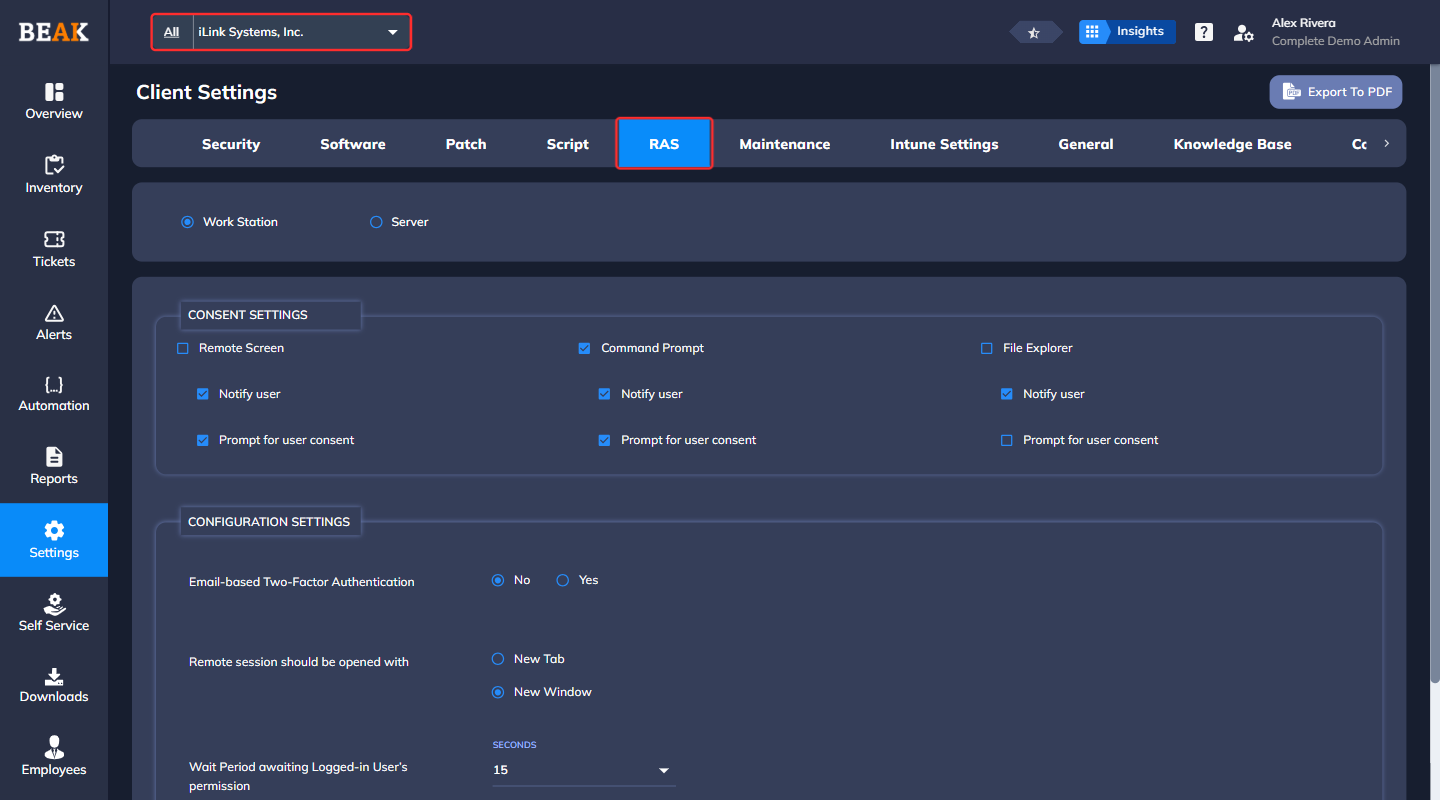
-
Asset Level
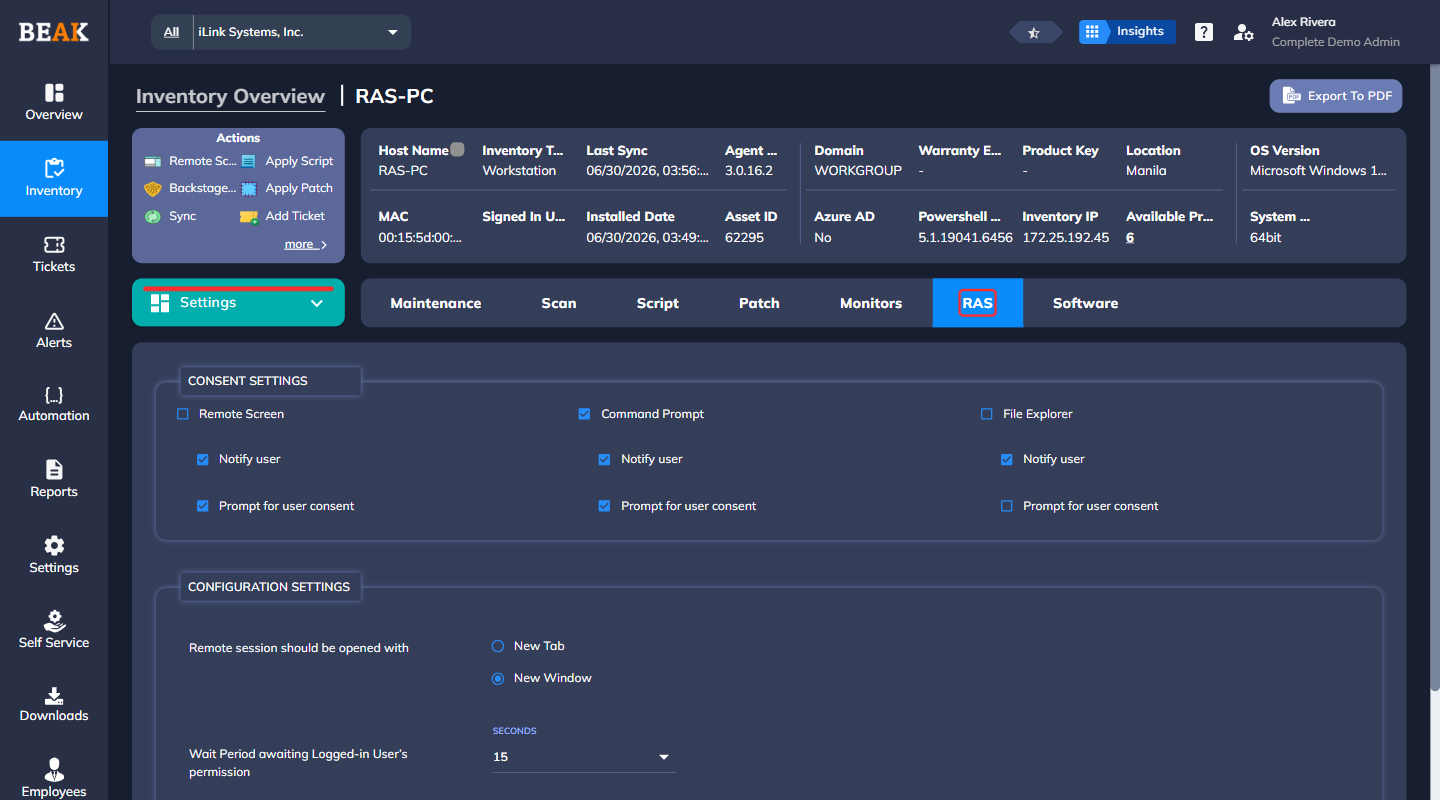
RAS Configuration and Consent
Consent Settings
Consent determines whether the end-user must approve a remote session. A prompt is displayed on the user's screen to Accept or Decline the session.
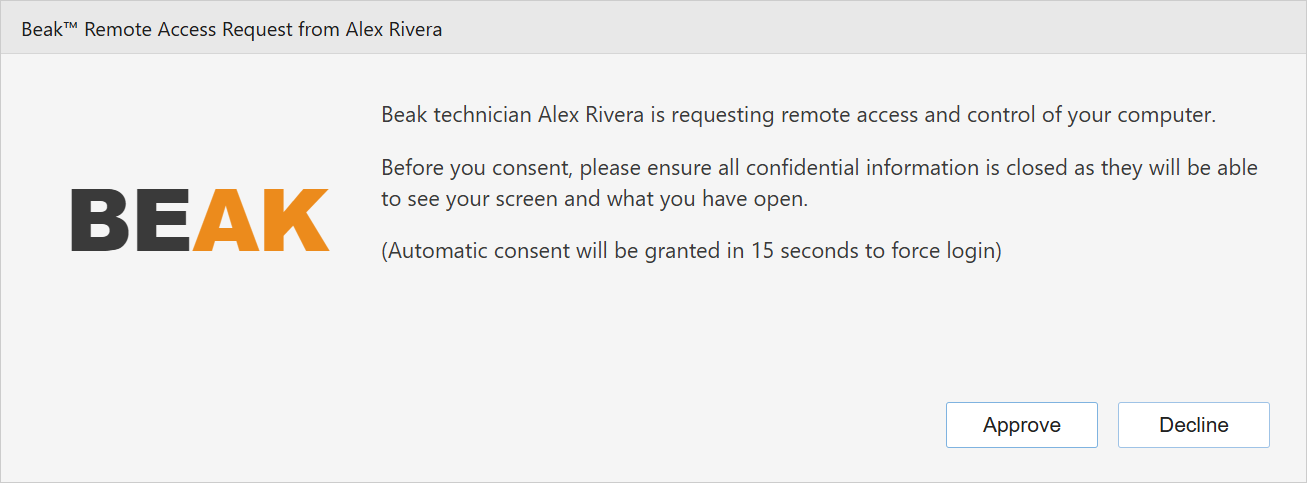
Consent applies to:
- Remote Screen Sharing
- File Explorer Access
- Command Prompt Access
Configuration Settings
-
Remote session should be opened with
Choose between opening session in a new tab or new window. -
Wait Period awaiting user consent
Define how long the technician should wait for user approval. -
Wait Timeout Action
- Force Login — Technician can proceed without user consent.
- Terminate Login — Ends the remote session attempt.
-
Session Timeout
Set inactivity timeout for auto-disconnection. -
Session Cancelled Action
Define what happens on the user's computer after the technician ends the session.