M365 Users
The M365 Users page provides a centralized view of all Microsoft 365 users synced from your connected tenant. Use this page to monitor user activity status, review license assignments, and identify inactive accounts that may be candidates for license reclamation.
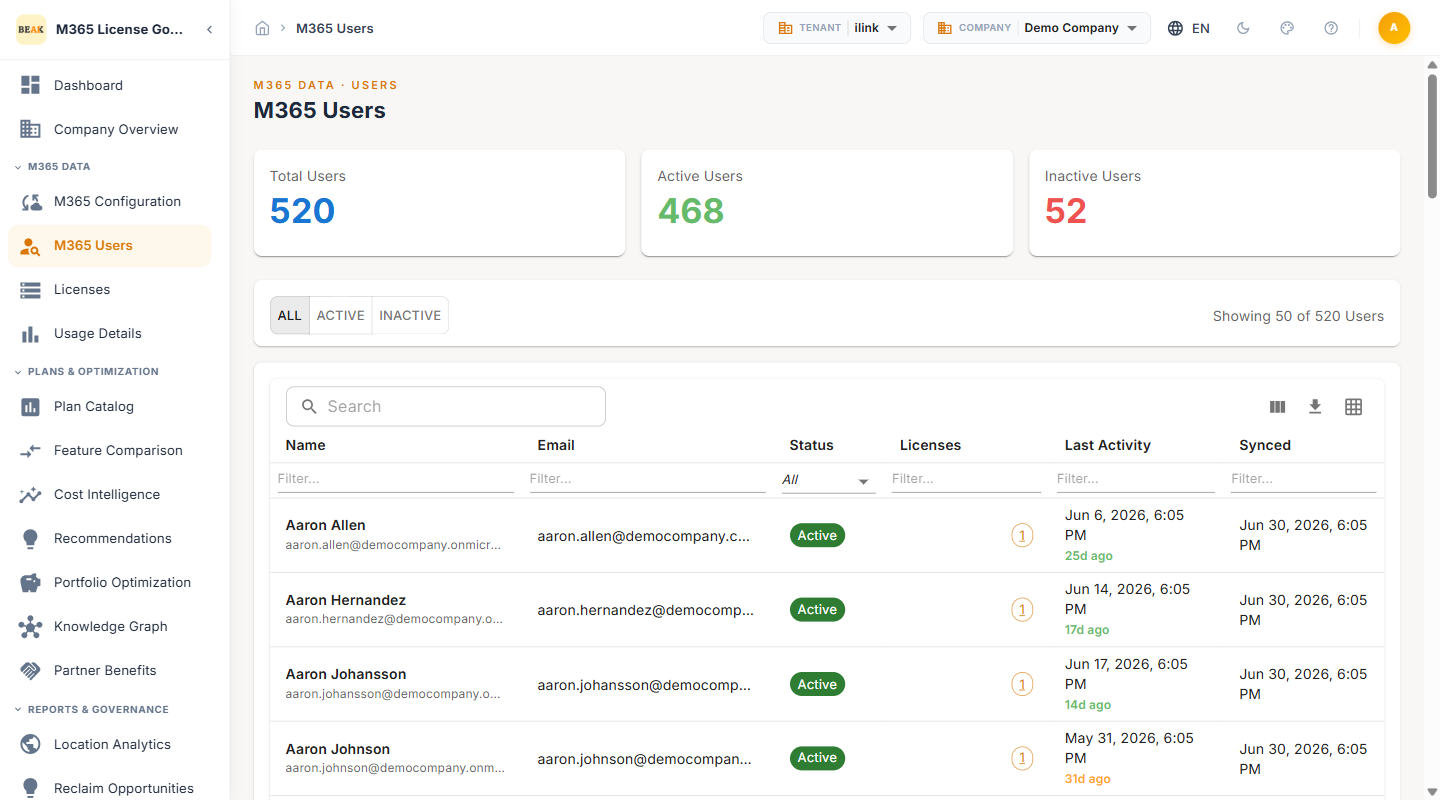
Summary Cards
At the top of the page, three summary cards provide a high-level snapshot of your M365 user population:
- Total Users — The total number of M365 users synced from the connected tenant
- Active Users — Users who have shown sign-in or application activity within the configured monitoring period
- Inactive Users — Users with no recorded activity within the monitoring period, flagged for review
Filtering and Search
The M365 Users page provides multiple options for narrowing down the user list:
Status Tabs
- ALL — Displays every synced user regardless of activity status
- ACTIVE — Filters to show only users with recent activity, indicated by a green
Activebadge - INACTIVE — Filters to show only users with no recent activity, indicated by a red
Inactivebadge
Search
Use the search bar to find specific users by name or email address. Results update dynamically as you type.
User Table
The main data table displays synced user details with the following columns:
- Name — The display name of the M365 user, with the UPN shown below in smaller text
- Email — The user's primary email address or UPN
- Status — Activity status shown as a colored badge: green for
Activeor red forInactive - Licenses — A badge showing the number of M365 licenses currently assigned to the user
- Last Activity — The date of the user's most recent sign-in or application usage, with a relative time indicator shown below (e.g., "29d ago" in orange for recently inactive users)
- Synced — The date when the user's data was last synchronized from the M365 tenant
Pagination
The table displays 50 users per page by default. Use the pagination controls at the bottom of the table to navigate through additional pages.
Table Controls
- Column Export — Click the export icon to download the current table data as a file
- Download — Export the full user list for offline analysis
- Grid View Toggle — Switch between the default list view and a compact grid layout
Understanding User Status
User status is determined by activity data synced from Microsoft Graph API:
- Active — The user has recorded sign-in activity, mailbox usage, Teams participation, or other M365 application usage within the configured activity window
- Inactive — No activity has been detected for the user within the activity window. Inactive users are prime candidates for license review and potential reclamation
Note: Activity data depends on the permissions granted to the M365 configuration. Ensure that
Reports.Read.Allis enabled to receive accurate activity information.
Best Practices
- Review inactive users regularly to identify licenses that can be reclaimed or reassigned
- Cross-reference license counts with actual usage to find over-provisioned accounts
- Use the search and filter tools to investigate specific departments or user groups
- Export user data periodically to maintain offline records for compliance and audit purposes
- Monitor the Synced date to confirm that data is being refreshed on schedule