System Settings
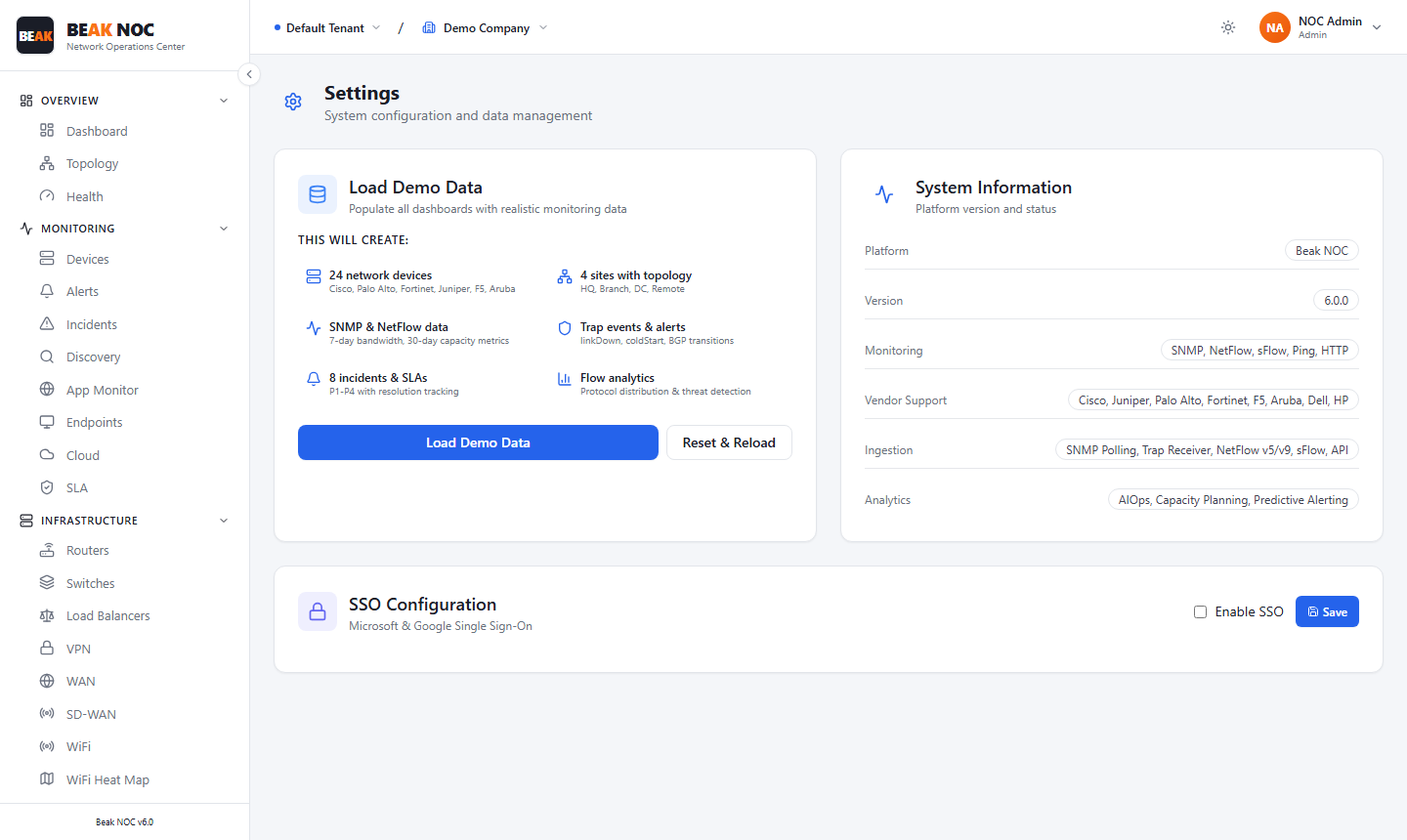
The System Settings page provides platform-level configuration and data management capabilities for Beak NOC. It is the central control point for loading demo data, reviewing system information, and configuring single sign-on (SSO) authentication.
Load Demo Data
The Load Demo Data section allows administrators to populate the platform with a representative dataset for demonstration, testing, or onboarding purposes. Clicking Load Demo Data creates the following:
- 8 sites — Pre-configured site records representing different physical locations
- SNMP & NetFlow setup — Sample SNMP community strings and NetFlow collector configuration
- Top events & alerts — A set of pre-populated alert and event records for demonstration
- Flow analysis — Sample network flow data for traffic and bandwidth analysis views
- X vendors & Y devices — A device inventory populated with representative network hardware from common vendors
Note: Loading demo data will overwrite or supplement existing data depending on tenant configuration. Use Reset & Reload to clear existing demo data and start fresh.
Reset & Reload
The Reset & Reload button clears all previously loaded demo data and re-loads a clean copy. Use this when demo data has been modified and needs to be restored to its original state.
System Information
The System Information panel displays read-only metadata about the current platform installation:
| Field | Description |
|---|---|
| Platform | Platform name and edition (e.g., Beak NOC) |
| Version | Installed software version |
| Monitoring | Monitoring engine details and status |
| Vendor Support | List of supported device vendors for polling and discovery |
| Logging | Active logging configuration |
| Deployment | Deployment mode — cloud, on-premises, or hybrid |
This information is useful when raising support tickets or verifying that the correct version is installed after an upgrade.
SSO Configuration
The SSO Configuration section enables Google Workspace Single Sign-On integration for Beak NOC:
- Enable SSO — Toggle to activate SSO authentication. When enabled, users are redirected to the configured identity provider for authentication instead of using local credentials.
- Save — Saves the current SSO configuration.
Note: Enabling SSO requires coordination with your identity provider administrator to configure the Beak NOC service provider (SP) details in the IdP. Misconfigured SSO settings can lock users out — test with a non-administrator account before disabling local authentication.
Best Practices
- Load demo data before customer demonstrations — Use the Load Demo Data function to ensure consistent, representative data is available before presenting the platform to new customers or stakeholders.
- Record the platform version before upgrades — Note the current version from System Information before applying updates, so you can reference the previous version if a rollback is needed.
- Test SSO in parallel before switching — When enabling SSO for the first time, keep local authentication active and test with a pilot user group before enforcing SSO organisation-wide.
Related Pages
- System Administration — Tenant, site, user, and collector management
- Discovery — Network discovery configuration separate from demo data setup