Licenses
A licence binds one tenant to one product on one plan. It carries the status that decides whether validation succeeds, the expiry date, the metric limit and reported usage, the features granted, and the clients and keys attached to it.
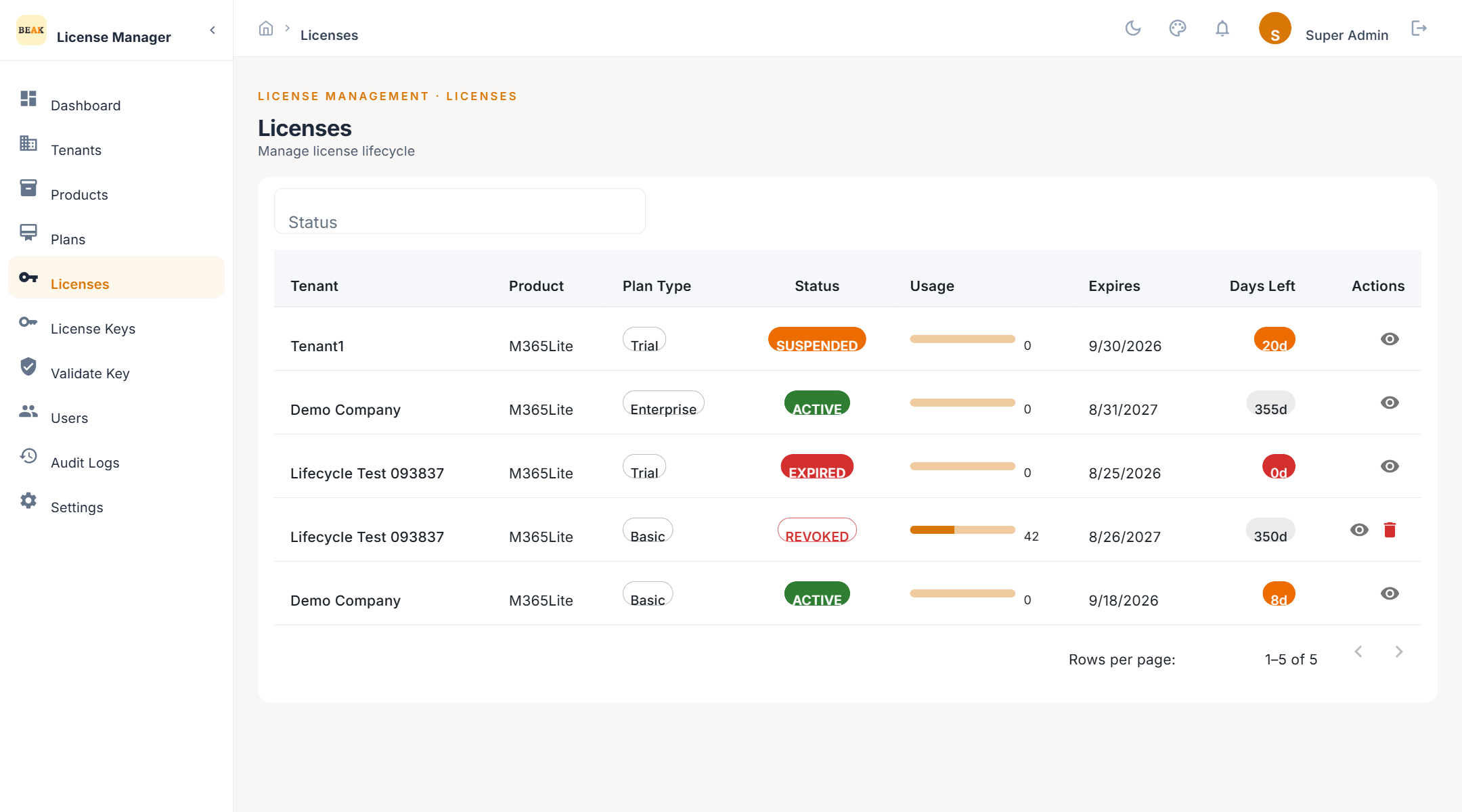
License List
Licences are listed with tenant, product, plan, status, metric usage, and expiry date. Filter by status to find drafts waiting for activation or suspended licences waiting for a decision.
Creating a License
- Click Add License
- Select the Tenant
- Select the Product
- Select the Plan — only plans belonging to the selected product are accepted; a plan from another product is rejected with a message naming the plan code and its owning product
- Optionally override the metric limit and expiry date inherited from the plan
- Optionally attach clients and add notes
- Save
A new licence starts in Draft. It has no key yet and does not validate.
License Lifecycle
| Status | Meaning | Validation |
|---|---|---|
Draft | Created; no key issued and not yet activated | Fails |
Active | Activated by an operator or by generating a key; not yet bound to a machine | Succeeds |
Activated | A product has validated the key with activation, binding it to a machine | Succeeds |
Suspended | Paused by an operator; data kept | Fails |
Pending Renewal | Marked by an operator as approaching renewal | Succeeds |
Expired | End date passed; features withdrawn | Fails |
Revoked | Terminated; every key deactivated. Terminal | Fails |
Allowed transitions:
- From
Draft— Activate, or Revoke - From
Active— Suspend, Revoke, mark Pending Renewal; becomesActivatedwhen a product validates with activation; becomesExpiredby the nightly job - From
Activated— Suspend, Revoke, mark Pending Renewal; becomesExpiredby the nightly job - From
Suspended— Resume (returns toActivatedif the licence had been activated, otherwiseActive), or Revoke - From
Pending Renewal— Renew, Expire, or Revoke - From
Expired— Renew, or Revoke - From
Revoked— No transitions
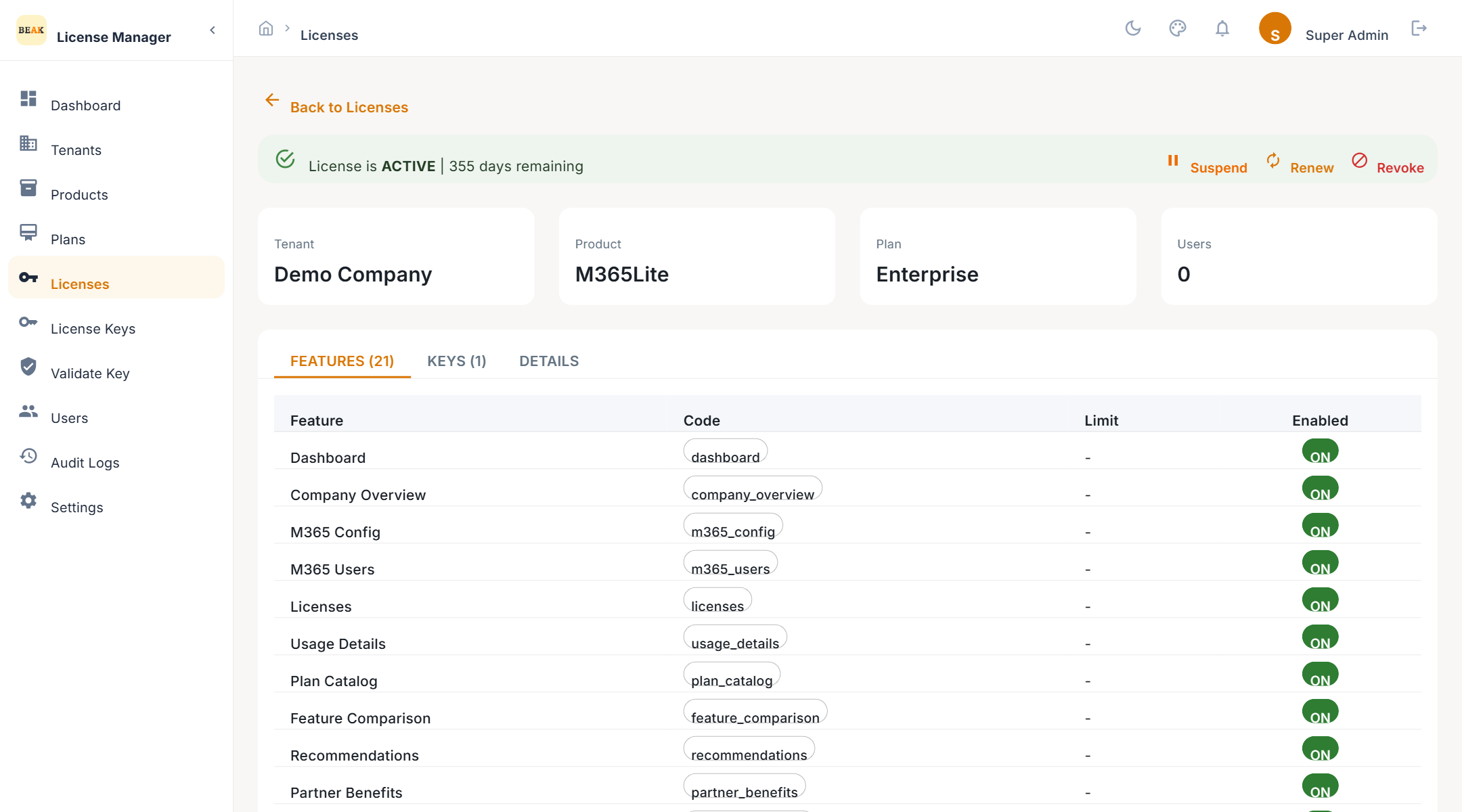
License Actions
- Activate — Moves a
DrafttoActive. Generating the first key does this implicitly. - Suspend — Pauses validation without losing anything. Use it for non-payment or a customer request.
- Resume — Lifts a suspension and returns the licence to its previous live state.
- Revoke — Ends the licence permanently and deactivates every key on it. Keys cannot be generated for a revoked licence.
- Renew — Extends the licence. Provide a new From Date and To Date, or a Duration in days, and optionally a new metric limit. The renewal count increments and the licence returns to
ActiveorActivated.
Usage
Products can report usage when they validate — M365 Lite, for example, reports its count of active Microsoft 365 users. The licence stores it as metric used, shown against the metric limit on the licence card. Usage can also be set by an operator.
Features and Clients
- Features — The feature codes granted to this licence, each with an enabled flag and an optional limit. They default from the plan and can be adjusted per licence.
- Clients — The tenant's installations attached to this licence, up to the plan's client allowance.
Scheduled Jobs
Three daily jobs act on live licences — both Active and Activated:
| Job | Runs | What it does |
|---|---|---|
| Expiry warnings | 06:00 | Emails the tenant contact for licences ending in 7, 3, or 1 days, per the notification settings |
| Auto-expire | 00:15 | Moves licences whose end date has passed to Expired |
| Renewal reminders | 08:00 | Emails the tenant contact for live and Pending Renewal licences approaching their term |
A weekly job on Sunday at 03:00 trims old audit-log entries.
Best Practices
- Renew before expiry — A renewal after the end date restores validation, but the product will have refused the customer in between.
- Suspend, don't revoke, for disputes — Revocation is terminal; suspension is reversible and keeps the keys.
- Check the plan belongs to the product — The form enforces it, but when scripting the API the same rule applies and a mismatch returns an error.