License Keys
A product key is the string a customer enters into a Beak product. Each key is generated for one licence, is cryptographically random, and carries a signed payload that ties it to the licence's product, tenant, and plan. Keys are what products present to the Key Validation API.
Key Format
Keys follow the pattern BEAK-XXXX-XXXX-XXXX-XXXX: the fixed prefix and four groups of four characters drawn from an alphabet that omits easily confused letters and digits. The format is fixed because product installers collect the 20 characters in fixed boxes.
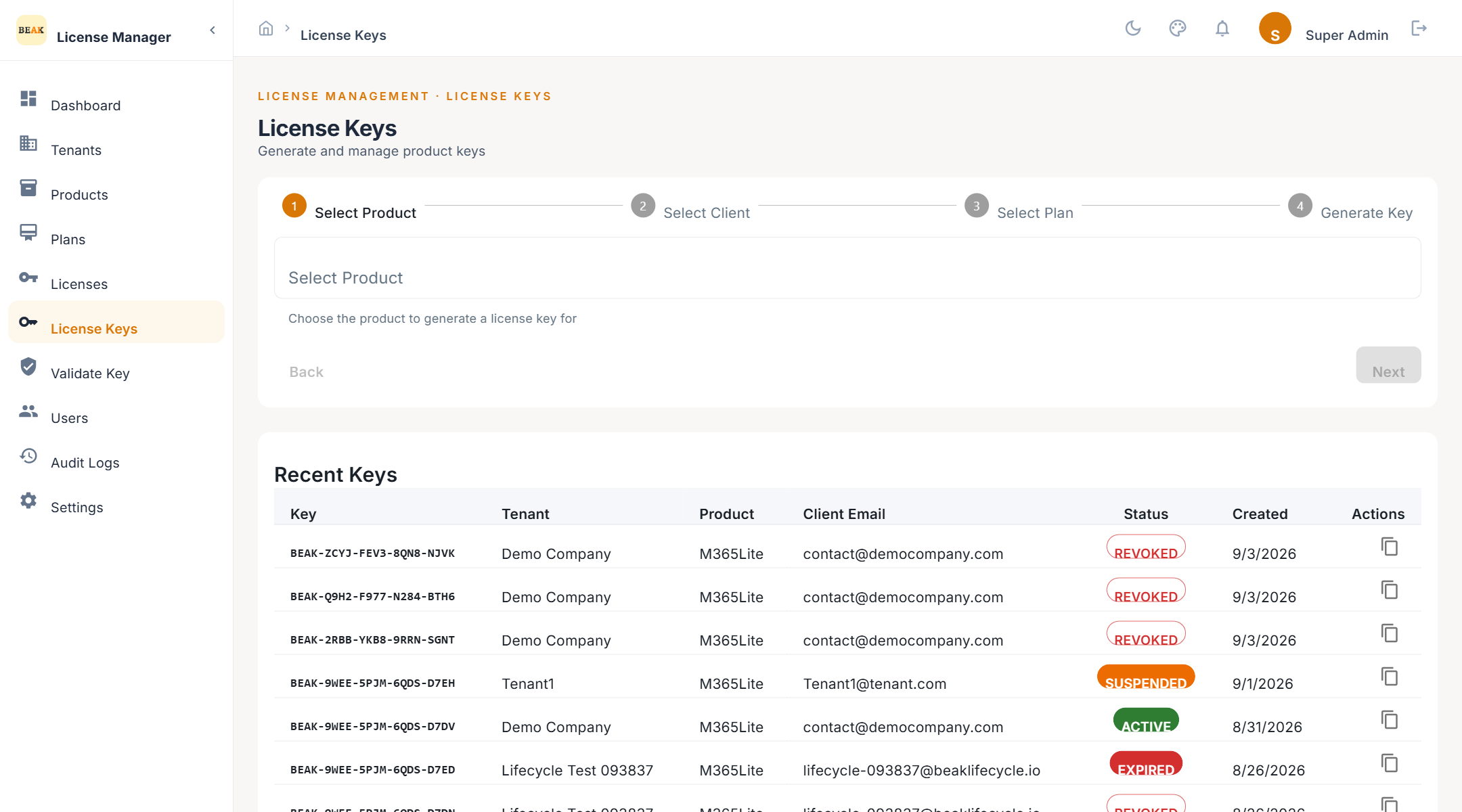
Key List
Each key shows its value, the licence and tenant it belongs to, whether it is active, when it was last validated, how many times it has been validated, and the machine it is bound to once a product has activated it.
Generating a Key
- Click Generate Key
- Select the Product
- Select the Plan
- Select the Client / Tenant the key is for
- Optionally enter the Client Email to send the key immediately
- Generate
The key is created for the matching licence, the licence moves from Draft to Active if it was a draft, and the key is emailed when an address is given and email delivery is configured. A licence can hold several keys — for example one per installation.
Note: Keys cannot be generated for a
Revokedlicence.
Sending a Key by Email
Use Send Email on a key to deliver or re-deliver it. The email uses the configured sender and the installer download link. See Settings for the delivery setup.
Revoking a Key
Revoke deactivates a single key without touching the licence. The product that held it fails validation on its next check. Generate a new key for the licence if the customer needs to continue.
Machine Binding
When a product validates with activation, the key is bound to the machine identifier the product sends and the licence moves to Activated. Subsequent validations from the same machine succeed; the binding is visible on the key.
Validate Key Tool
The Validate Key page lets an operator run exactly the check a product runs, without leaving the console.
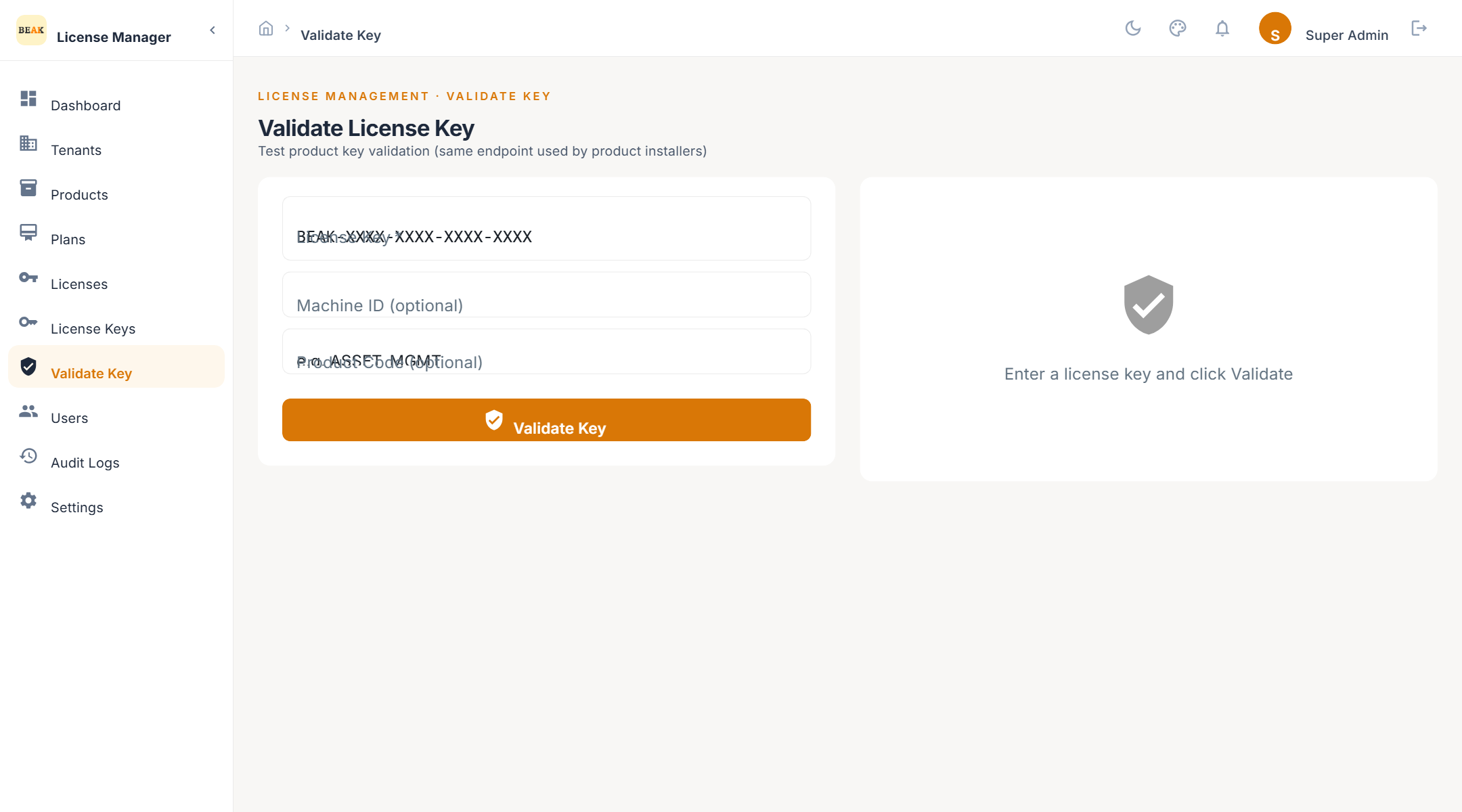
- Enter the License Key — required
- Optionally enter the Machine ID the product would send
- Optionally enter the Product Code to confirm the key belongs to that product
- Click Validate
The result shows whether the key is valid, the licence status, the product and tenant, the plan type, the features granted, the metric limit and usage, and the days remaining. An invalid key returns the reason.
Note: Validating from this tool does not activate the licence or bind a machine. Only a product calling the API with activation does that.
Best Practices
- Validate a new key before sending it — Confirms the key resolves to the intended tenant, product, and plan.
- Include the product code when validating — It confirms the key was issued for that product and matches what installers send.
- Revoke lost keys promptly — A revoked key fails validation on the product's next check; the licence itself is unaffected.