Patch Management
Overview
Patch management is the process of planning, implementing, and maintaining updates (patches) for:
- Software applications
- Operating systems
- Firmware
- Other IT assets
The primary goal is to ensure systems remain up to date with the latest:
- Security patches
- Bug fixes
- Vendor enhancements
Scenario
David has been informed by the support team that a few computers are still showing Windows vulnerabilities. He wants to apply the latest patches on those systems to resolve the issue.
Viewing Available Patches
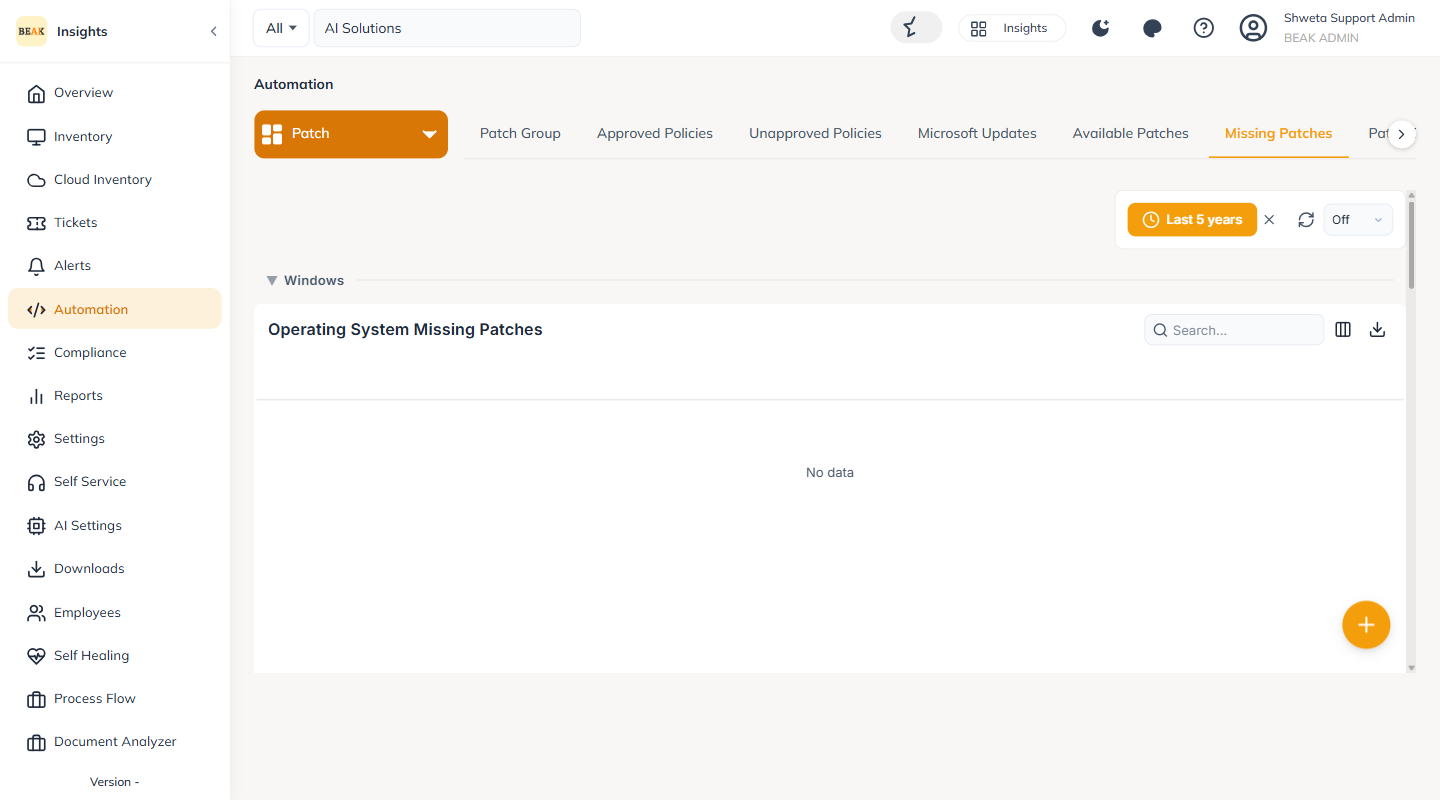
Available and missing patches are reviewed on the Automation page under the Patch page-group. Set the page-group selector to Patch to reveal its tabs — Patch Group, Approved Policies, Unapproved Policies, Microsoft Updates, Available Patches, Missing Patches, Patch Compliance and Patch Queue.
Company Level
The Missing Patches and Available Patches tabs list the complete set of missing and available patches — both Operating System and Application — for all assets registered in the company.
Asset Level
Open an individual asset (Inventory > asset) to review its Missing Patches and Installed Patches.
Note: The Patch Manager product must be activated for both the company and the asset for the Missing Patches and Installed Patches views to display data.
Creating a Patch Policy
Patch policies are created on the Automation page under the Patch page-group, Policy tab.
In Global Settings, the Patch page-group presents the Policy, Repository, Queue and History tabs. Open the Policy tab and click Add Policy.
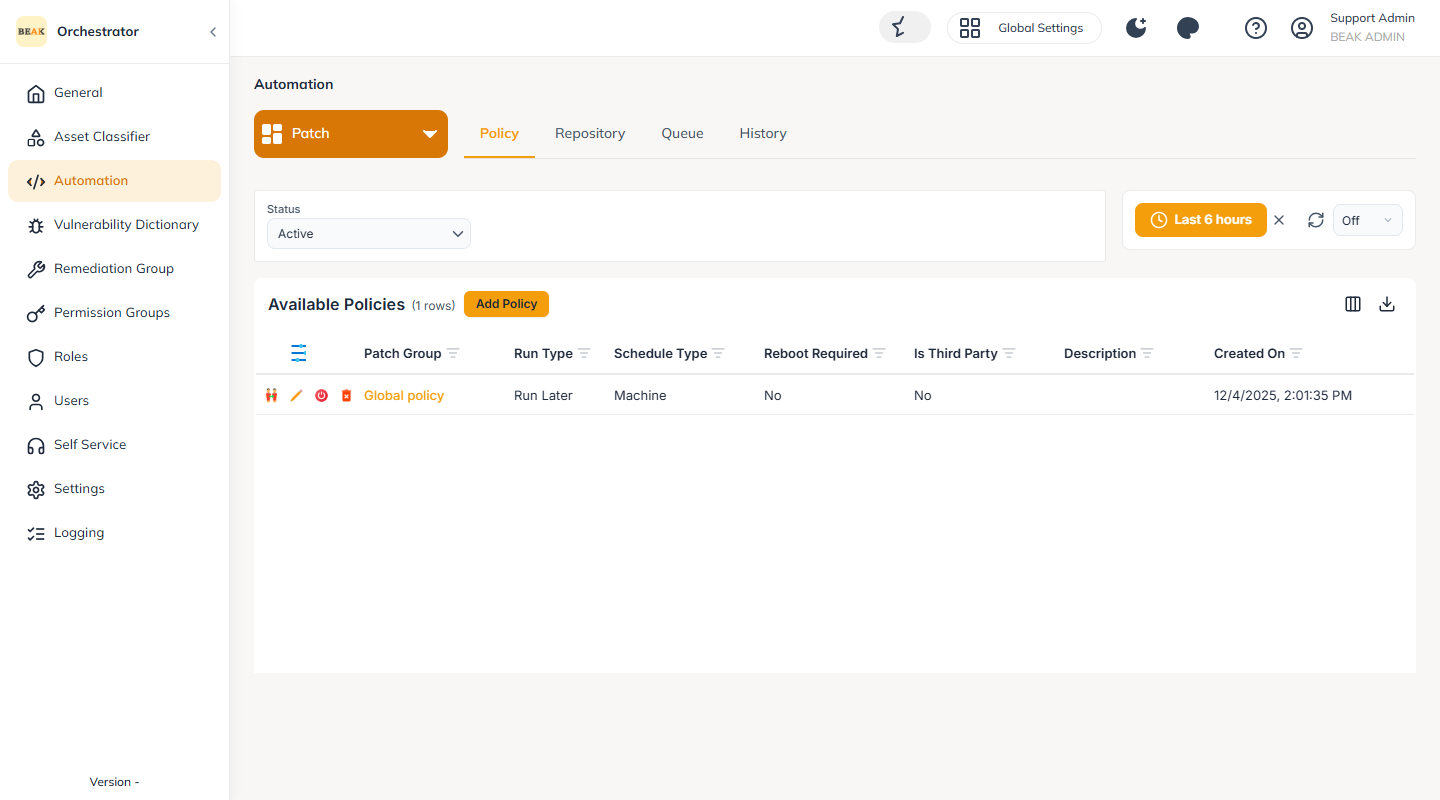
- Global Level — a policy created in Global Settings can be applied across all companies or to selected companies
- Company Level — a policy created at the company level applies to that company only
Patch Policy Details
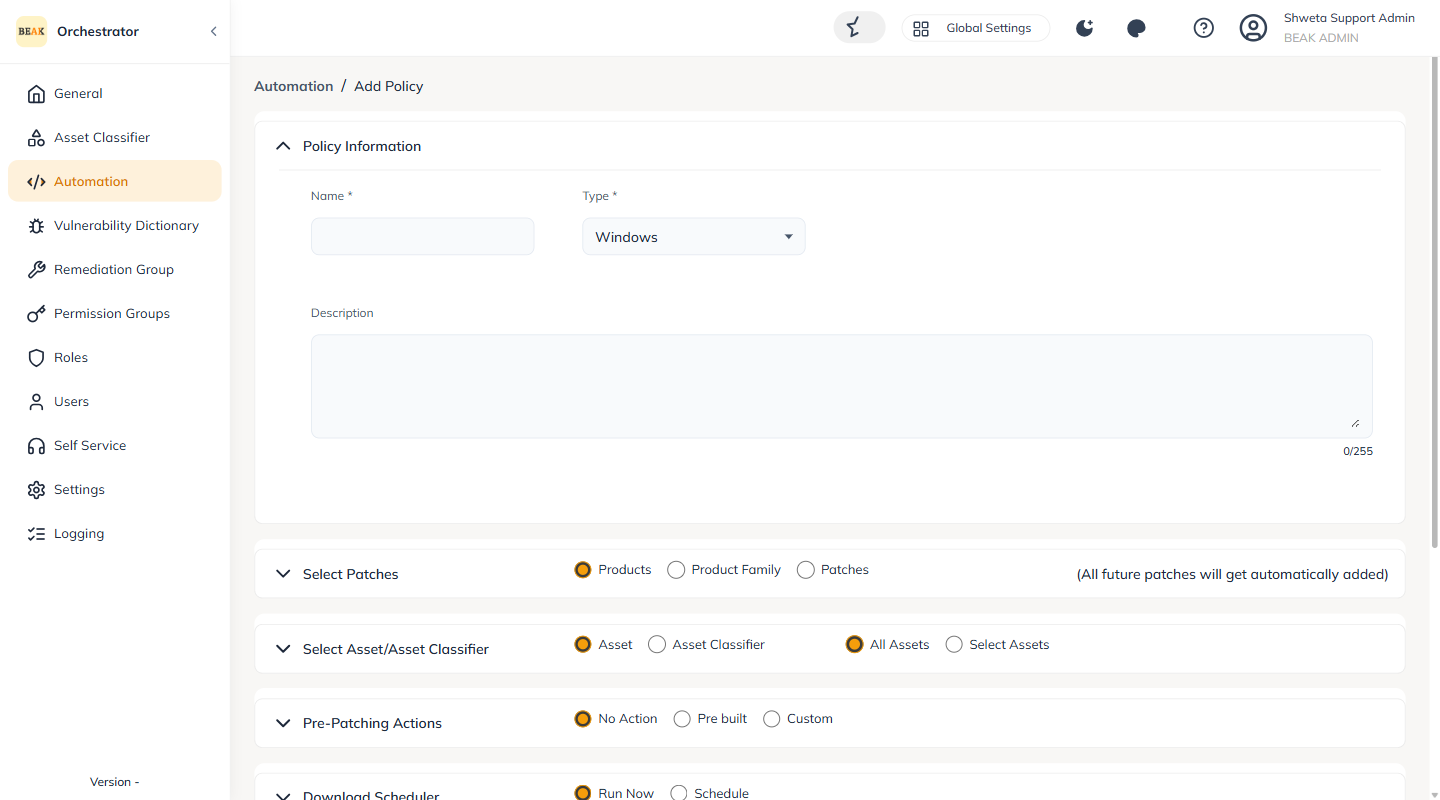
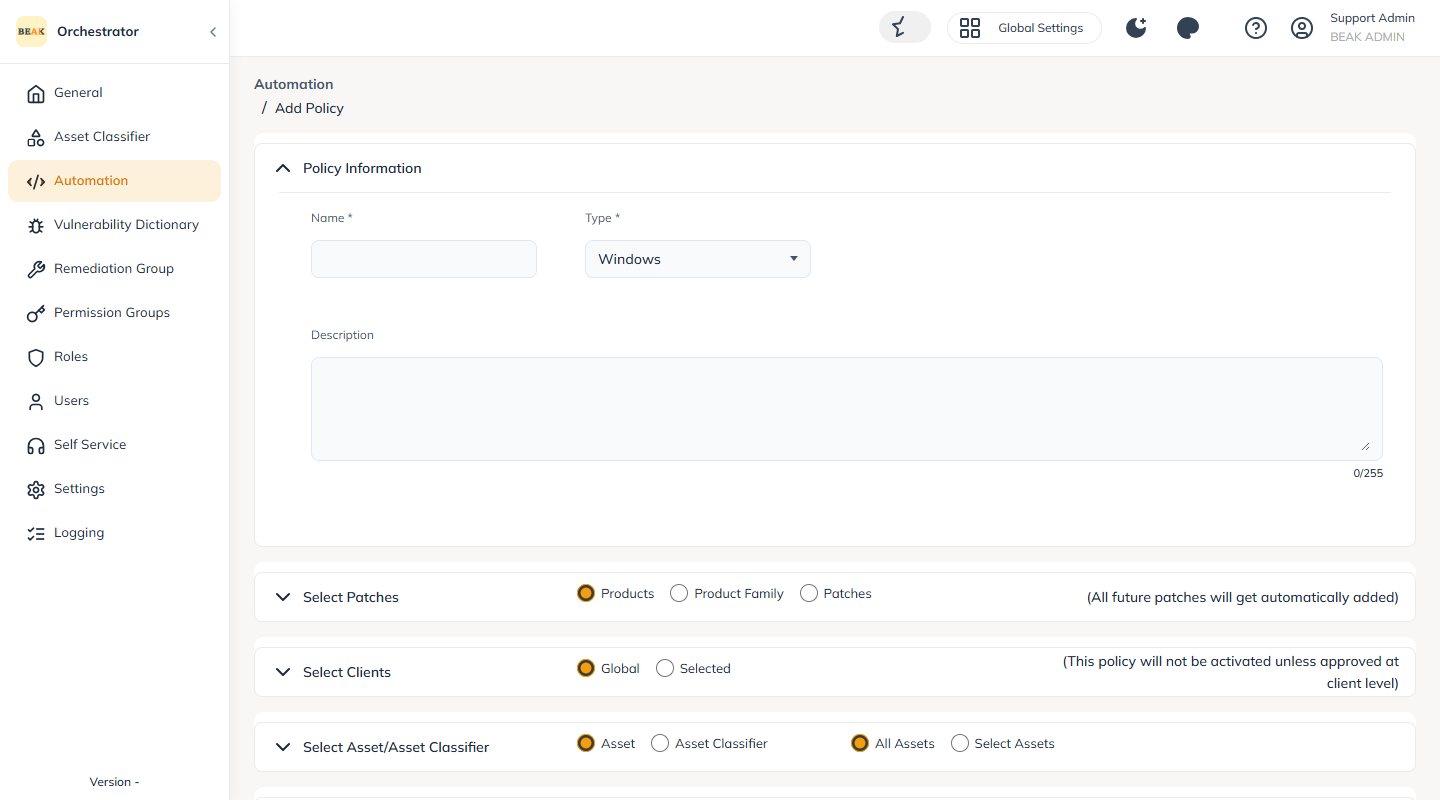
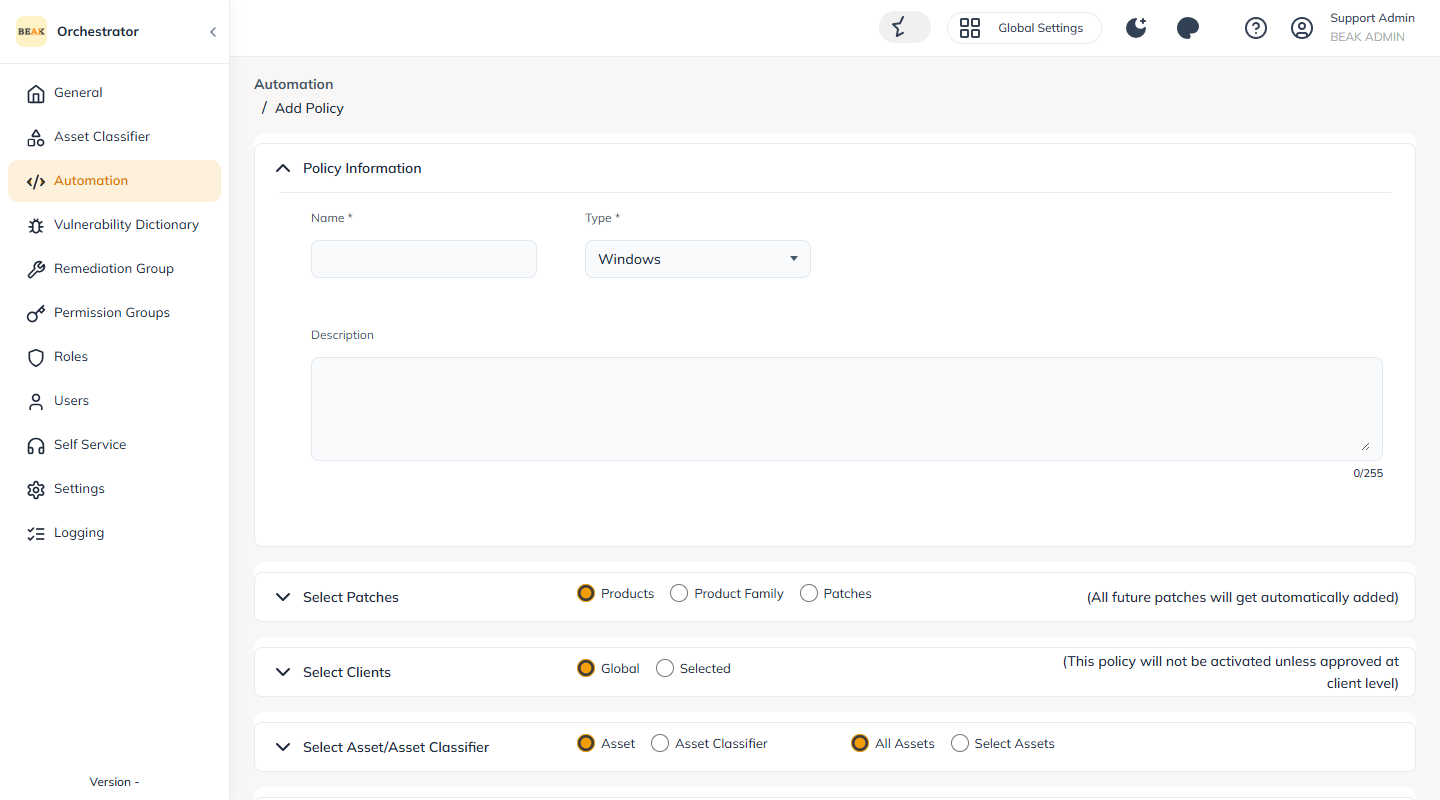
The Add Policy form is organized into collapsible sections.
Policy Information
- Name — Name of the Patch Policy
- Type
- Operating System
- Third Party — updates outside of Microsoft, for example VLC
- Custom
- Description
Select Patches
Choose what the policy covers:
- Products — Product-level selection. With Products, all future patches are added automatically.
- Product Family — Bundled patch families grouped under a parent category
- Patches — Manually select specific patch updates
Select Clients
Choose Global or Selected.
Note: A policy is not activated until it is approved at the client level.
Select Asset / Asset Classifier
Choose Asset or Asset Classifier, and then All Assets or Select Assets.
Pre-Patching Actions
Choose from:
- No Action
- Pre built
- Custom
Download Scheduler
Schedule patch downloads to Run Now or Schedule for later.
Reboot Settings
Defines how the system behaves after patching:
-
No Reboot — System continues without reboot
-
Reboot On Demand — Reboot is triggered when requested
-
Reboot After Install — User gets a reboot prompt
-
Schedule Reboot — Specify the time and prompt frequency
Prompt Settings:
- Prompt Frequency — How often the reboot prompt appears
- Deadline Behavior:
- Terminate — Ends patching process
- Force Reboot — Reboots device automatically
- Reboot Prompt Message — Customizable message
Post-Patching Actions
Choose from:
- No Action
- Pre built
- Custom
Additional Settings
-
Generate Alert — Notify post-patching
-
Enable maintenance mode for N minutes — Keeps the system isolated during patching so other jobs (like scripts or monitoring) don't interfere
-
Keep The Assets Alive while Patching — Prevent the asset going offline during the patching process
-
Force Patching if Assets are Online Within — Enforces patching within a defined time window
-
Recursive Patching Window — Specifies how long the patch process should run per asset
For example:
If the patching window is 3 hours, and Asset A completes patching in 1 hour, any newly available patches during the remaining 2 hours will also be applied. Once 3 hours pass, no new patches will be installed—even if available. -
Maximum Download / Install Duration — Caps the time allowed for downloading and installing
Applying Patch Policies
Company Level
From the Policy list, use the Run icon on a policy row to apply it.
Asset Level
A patch policy can also be applied at the asset level from the asset's patch actions.
The apply form lets you confirm the target assets and scheduling before running.
Viewing Patch Policy History
Patch history is available on the Automation page under the Patch page-group, History tab.
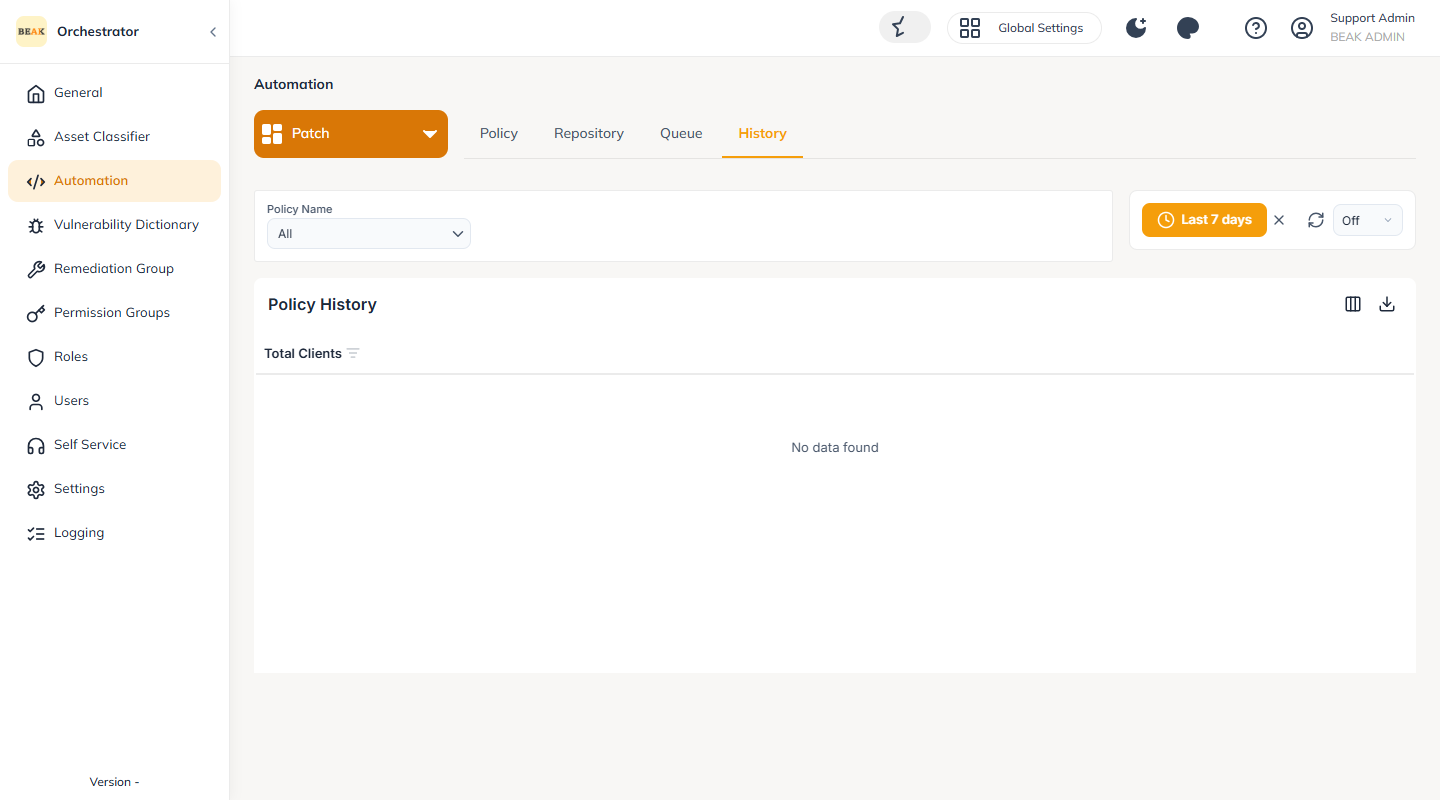
The Policy History table lists each policy with its:
- Last Applied At — When the policy last ran
- Total Clients — Number of clients the policy covers
- Total Inventories — Number of assets targeted
- Total Runs — How many times the policy has run
- Terminated — Runs that were terminated
- Success — Successful runs
Per-asset patch history is also available on the individual asset's patch tabs.