Scripts & Agent
On Windows, Beak MDM can run PowerShell scripts on enrolled devices for software installation, system configuration, compliance checks, diagnostics, and other administrative tasks. Scripts are executed by the Beak Management Extension — a lightweight agent deployed automatically during Windows enrollment. Both script execution and the agent are Windows-only capabilities.
Beak Management Extension (BME)
Once Windows enrollment completes, Beak MDM automatically deploys the Beak Management Extension agent to the device. The agent runs as a Windows service and executes PowerShell scripts initiated from the server.
- Silent deployment — Delivered over the MDM channel with no user interaction required.
- Persistent service — Runs as a background Windows service on the device.
- Result reporting — Sends execution results back to the MDM server.
Silent Agent Installation
The email domain entered during enrollment is used to resolve the correct tenant and company. The Beak agent is then installed silently with the appropriate configuration — no manual device assignment is required. Once the Beak agent is installed, the device appears in the inventory on the Beak console.
Note: Silent, domain-based agent installation is automatic for Windows enrollment. The resolved domain determines the tenant and company the device is assigned to.
Dynamic Script Execution (PowerShell)
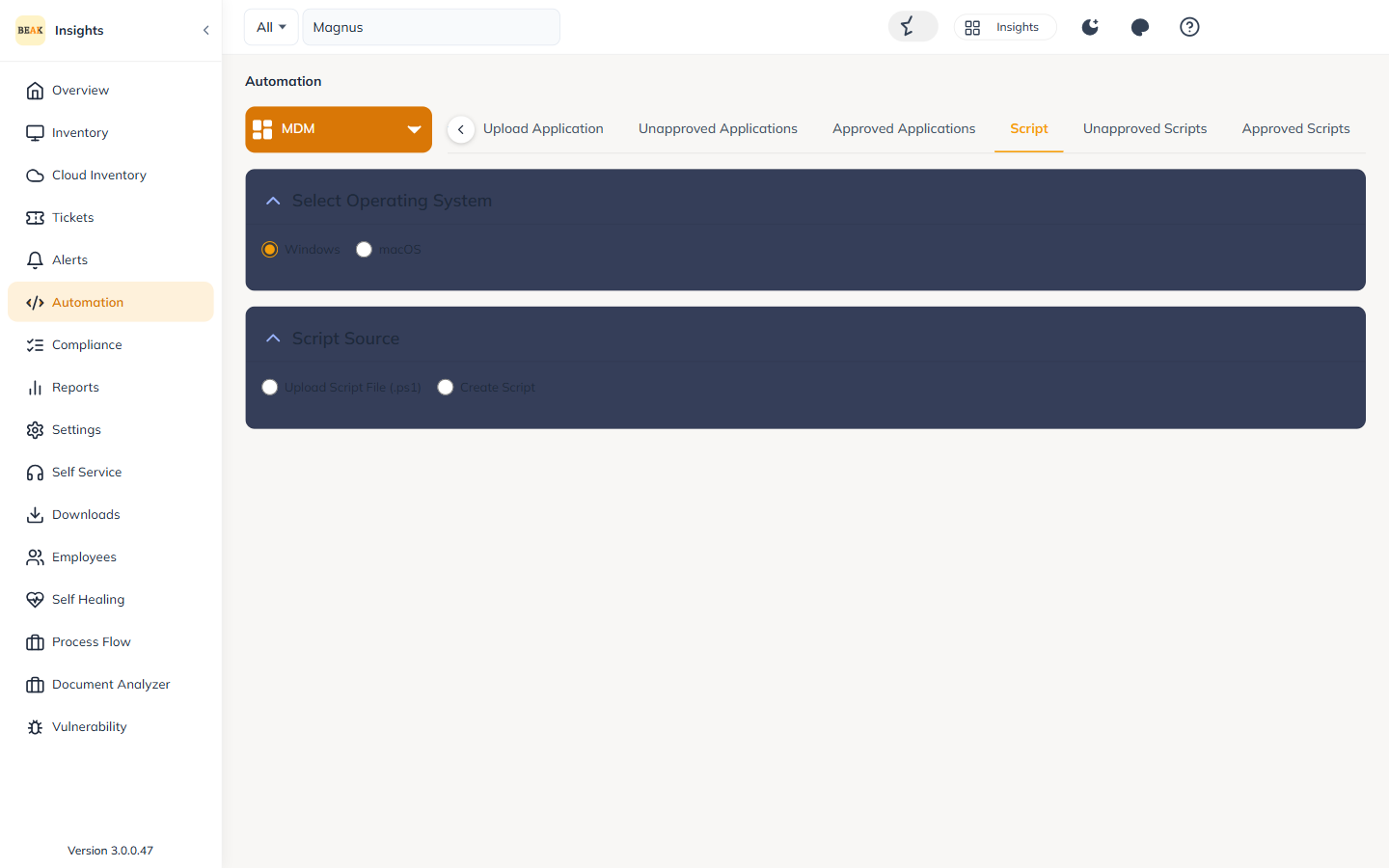
Administrators can upload PowerShell scripts — or create them directly in the console — and execute them on enrolled Windows devices. This is useful for software installation, system configuration, compliance checks, diagnostics, and other administrative tasks.
- Upload scripts — Add
.ps1scripts from the MDM console. - Target devices — Run against all devices under a company, or a specific selection.
- Edit scripts — Modify existing PowerShell scripts before re-execution.
- Logged results — Execution results and errors are recorded in Policy Execution History.
Important: Scripts run with the privileges of the Beak Management Extension service. Review scripts carefully and pilot them on a small selection of devices before running them fleet-wide.
History & Logs
Script activity and agent output are captured for auditing and troubleshooting.
- Script Execution History — Timestamp, script name, target devices, and execution status.
- Policy Execution History — Records script execution results and errors.
- Windows MDM Agent Logs — Logs captured from the Beak Management Extension running on the device.
Best Practices
- Pilot first — Execute new scripts against selected assets before targeting all assets under a company.
- Make scripts idempotent — Write scripts that can be safely re-run, since execution may be repeated across a fleet.
- Review before execution — Audit script contents before running, given the elevated context the agent runs in.
- Use history for diagnostics — Check Script Execution History and Windows MDM Agent Logs to confirm success and investigate failures.
Related Pages
- Device Enrollment — Windows enrollment deploys the Beak Management Extension
- Applications — Deploy
.msi/.exeapplications to Windows devices - Policies — Configuration policy management
- Feature Matrix — Per-platform script and agent support