Policies
Configuration policies (profiles) define settings that are applied to enrolled devices. From the Automation area of the Beak console, administrators upload policies, gate them behind an approval workflow, execute them against all or selected assets under a company, and revoke them when they are no longer needed. Policy management is available across iOS / iPadOS, macOS, and Windows.
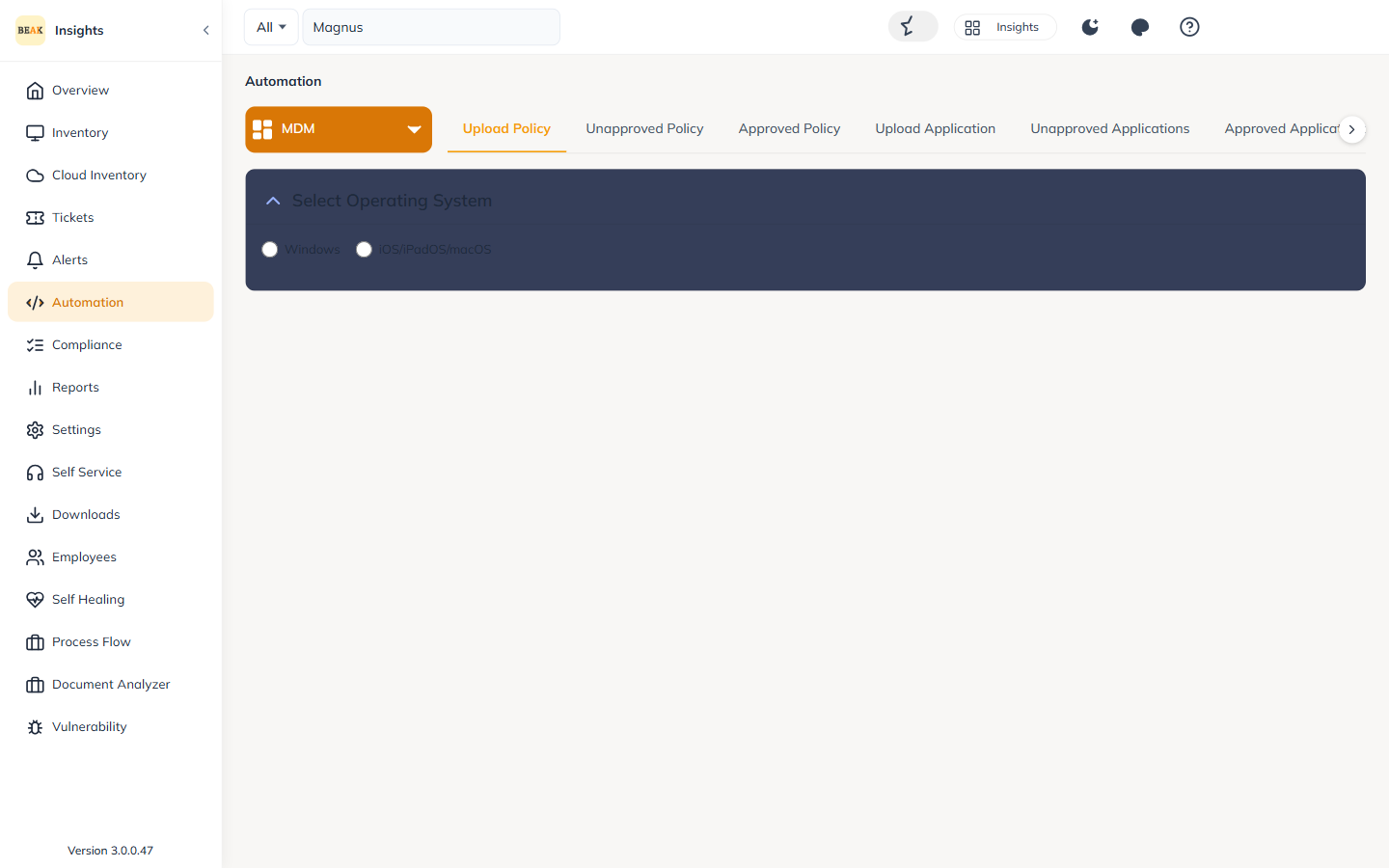
Policy Lifecycle
A policy moves through a simple lifecycle from upload to execution:
- Upload — Add a new configuration policy to the console.
- Approve — Mark the policy as
Approved. Only approved policies can be executed on devices. - Execute — Push the approved policy to target devices (all or selected assets).
- Unapprove — Set an approved policy back to
Unapprovedto prevent further execution until it is re-approved. - Revoke — Remove a previously applied policy from targeted devices.
Uploading a Policy
Upload a configuration policy from the Automation area, then review it before approval.
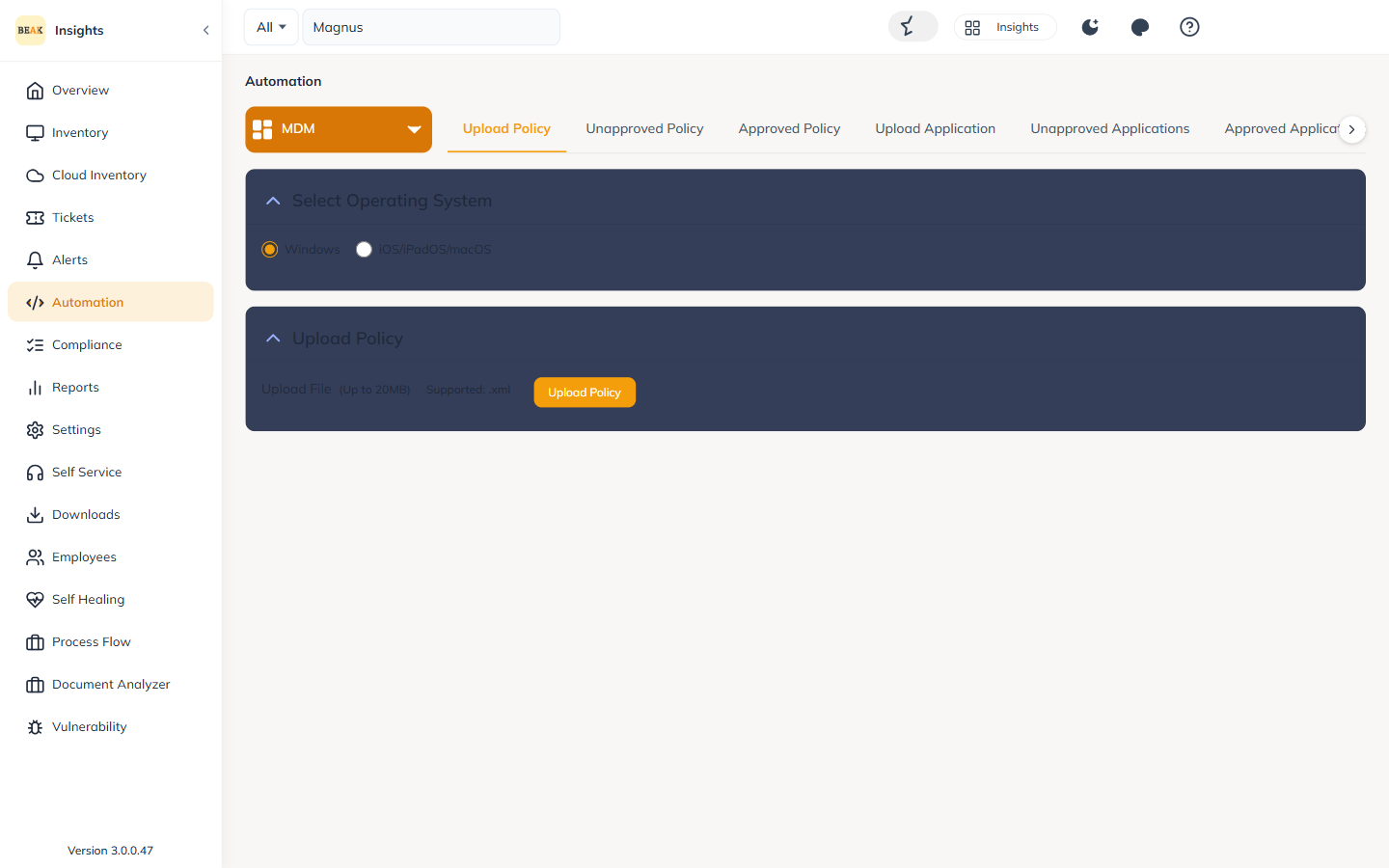
Note: Newly uploaded policies start as
Unapproved. A policy must be approved before it can be executed on any device.
Approving and Unapproving Policies
Approval acts as a safeguard so only vetted policies reach devices.
- Approve — Move a policy to
Approvedso it becomes eligible for execution. - Unapprove — Return a policy to
Unapprovedto immediately block further execution until it is re-approved.
Executing Policies
Approved policies can be executed against devices under the selected company with two targeting options:
- All assets — Execute the policy on every asset under the selected company.
- Selected assets — Execute the policy on specific, hand-picked assets under the company.
Revoking Policies
A previously applied policy can be revoked at any time to remove it from targeted devices. Revocation is supported across iOS / iPadOS, macOS, and Windows.
Policy Execution History
Every execution is recorded so administrators can audit what ran, where, and with what result.
- Timestamp — When the policy was executed.
- Policy name — The policy that was run.
- Target devices — The assets the policy was executed against.
- Execution status — The result of the execution.
Best Practices
- Approve deliberately — Treat approval as a review gate; only approve policies that have been validated.
- Pilot on selected assets — Execute a new policy against a small selection of assets before rolling it out to all assets.
- Unapprove to halt rollout — If a policy behaves unexpectedly, unapprove it to stop further execution immediately, then revoke where already applied.
- Audit via history — Use Policy Execution History to confirm a policy reached its targets and to investigate failures.
Related Pages
- Applications — Deploy Windows applications through the same Automation area
- Scripts & Agent — Run PowerShell scripts on Windows devices
- Device Inventory — Choose target assets for execution
- Feature Matrix — Per-platform policy support