Applications
Beak MDM deploys Windows applications to enrolled devices from the Automation area of the Beak console. Administrators upload an installer, edit it before approval, gate it behind an approval workflow, push it to all or selected assets, and revoke it when it is no longer needed. Application deployment is a Windows-only capability.
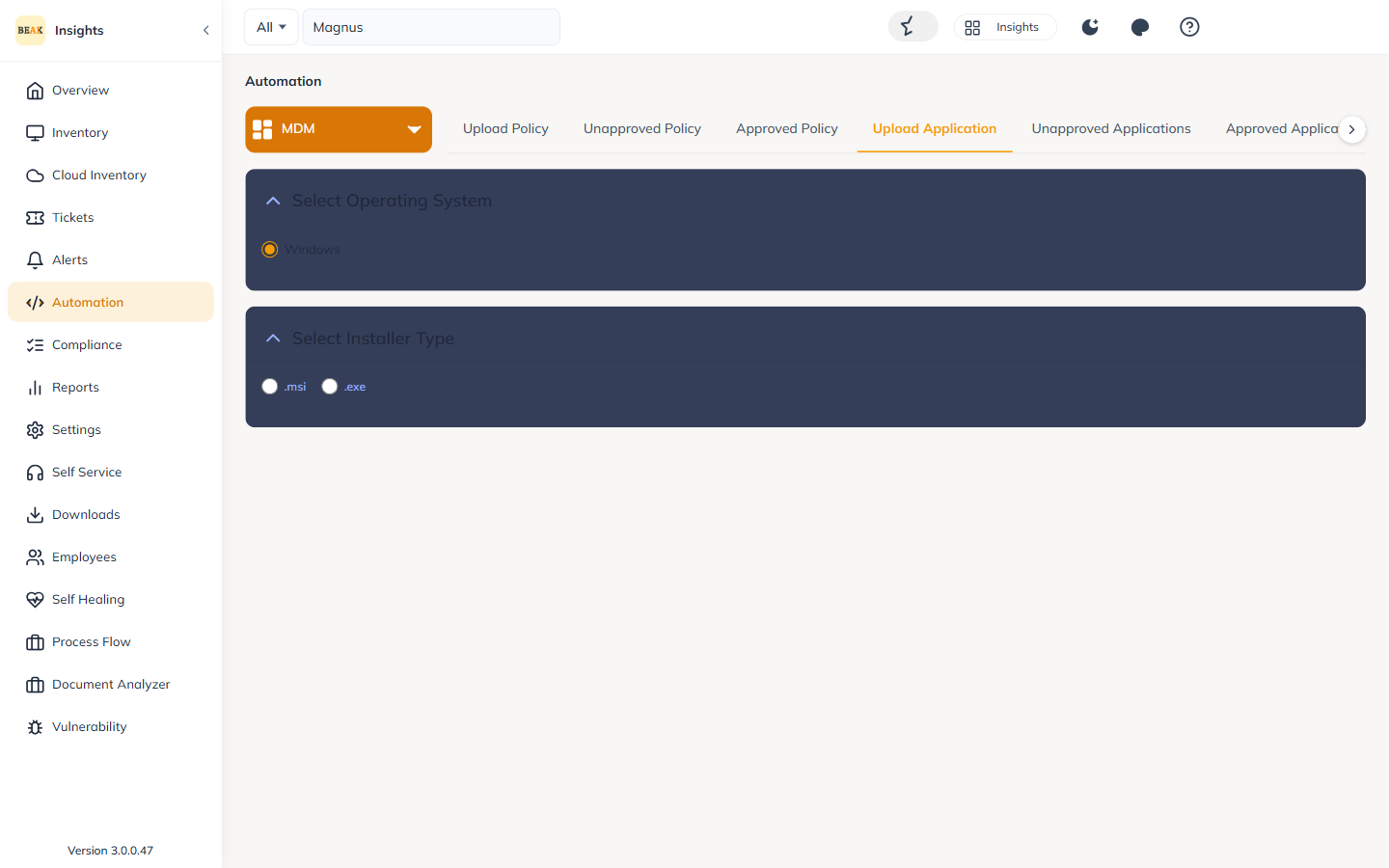
Note: Application deployment is supported on Windows only. iOS / iPadOS and macOS do not support application deployment through Beak MDM.
Supported Installers
.msi— Windows Installer packages..exe— Executable installers.
Application Lifecycle
- Upload — Add a new application installer to the console.
- Edit before approval — Update a previously uploaded application before it is approved — for example, to replace the installer file, modify metadata, or correct configuration details.
- Approve — Mark the application as
Approved. Only approved applications can be pushed to devices. - Deploy — Push the approved application to target devices (all or selected assets).
- Unapprove — Return an application to
Unapprovedto prevent further deployment. - Revoke — Remove a previously pushed application from targeted devices.
- Delete — Remove an application from the console.
Uploading and Editing an Application
Upload an installer from the Automation area and provide the required metadata. While the application is still Unapproved, it can be edited — you can update the installer file, modify metadata, or correct configuration details before approving it.
Note: Newly uploaded applications start as
Unapproved. Edit and validate the application while it is unapproved; once approved, it becomes eligible for deployment.
Approving and Unapproving Applications
Approval gates which installers can reach devices.
- Approve — Move an application to
Approvedso it becomes eligible for deployment. - Unapprove — Return an application to
Unapprovedto block further deployment.
Deploying Applications
Approved applications can be deployed against devices under the selected company with two targeting options:
- All assets — Deploy the application to every asset under the selected company.
- Selected assets — Deploy the application to specific, hand-picked assets under the company.
Revoking Applications
A previously pushed application can be revoked to remove it from targeted devices, either across all assets or for a specific selection.
Application Deployment History
Every deployment is recorded for auditing and troubleshooting.
- Timestamp — When the application was deployed.
- Application name — The application that was pushed.
- Target devices — The assets the application was deployed to.
- Deployment status — The result of the deployment.
Best Practices
- Validate before approval — Use the edit-before-approval step to confirm the correct installer and metadata before the application can be deployed.
- Pilot on selected assets — Deploy to a small selection of assets first, then expand to all assets once verified.
- Revoke cleanly — When retiring an application, revoke it from targeted devices rather than only unapproving it, so it is removed from endpoints.
- Track via history — Use Application Deployment History to confirm successful installs and investigate failures.
Related Pages
- Policies — Configuration policy management
- Scripts & Agent — PowerShell script execution and the Beak Management Extension
- Device Inventory — Choose target assets for deployment
- Feature Matrix — Per-platform application support