Settings
Settings hold the platform-level configuration: what the console reports about itself, the signed-in user's password, how licence emails are sent, when expiry warnings go out, and the wording of lifecycle emails.
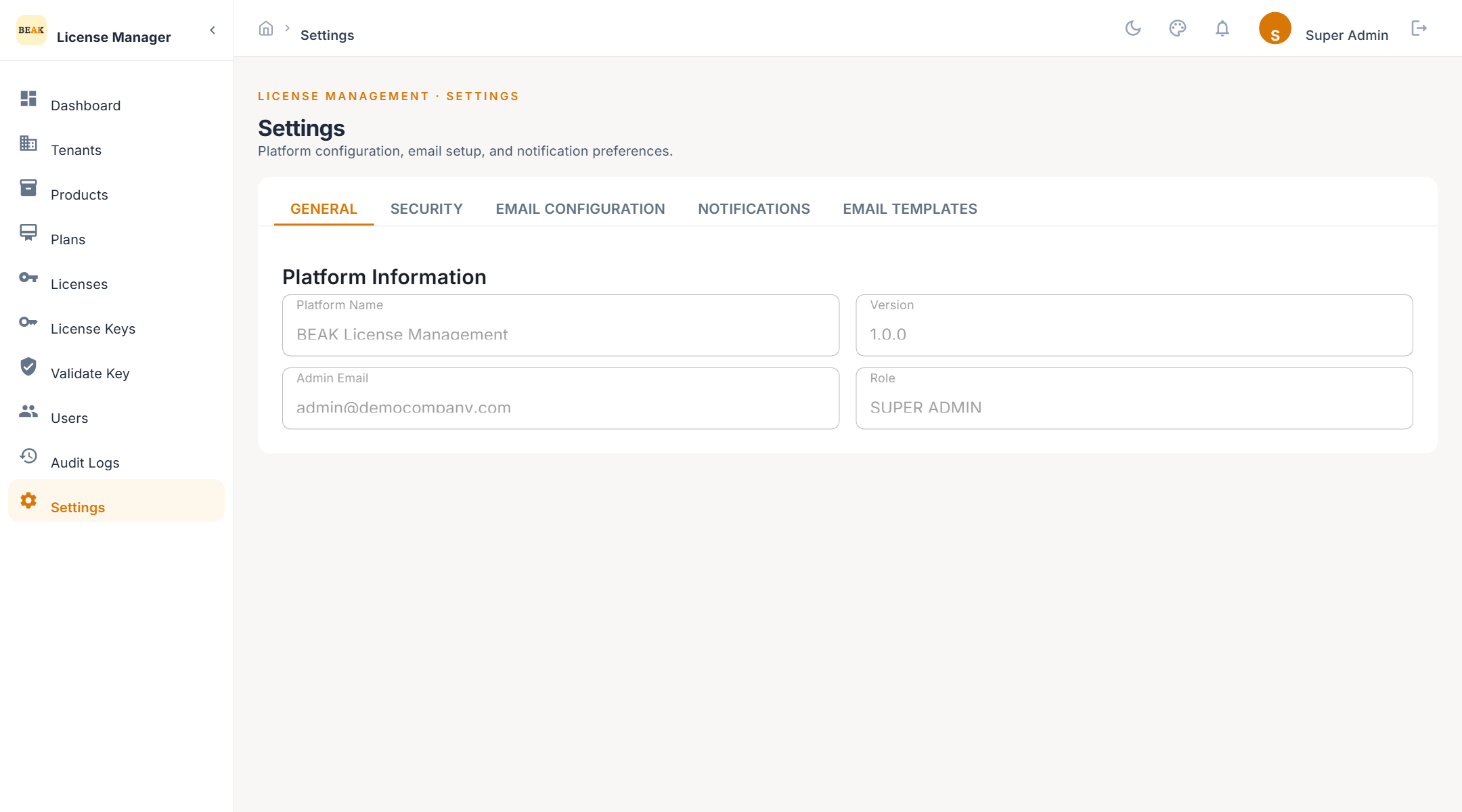
General
Platform Information shows the Platform Name, the running Version, the Admin Email, and your Role. These values are read-only and useful when raising a support request.
Security
- Change Password — Enter the Current Password, a New Password, and confirm it. Applies to the signed-in user.
- API Security — Describes how API access is protected for integrations that call the Product Manager beyond the public validation endpoint.
Email Configuration
Licence keys, expiry warnings, renewal reminders, and lifecycle notifications are sent by email. Choose one Email Provider and complete its section.
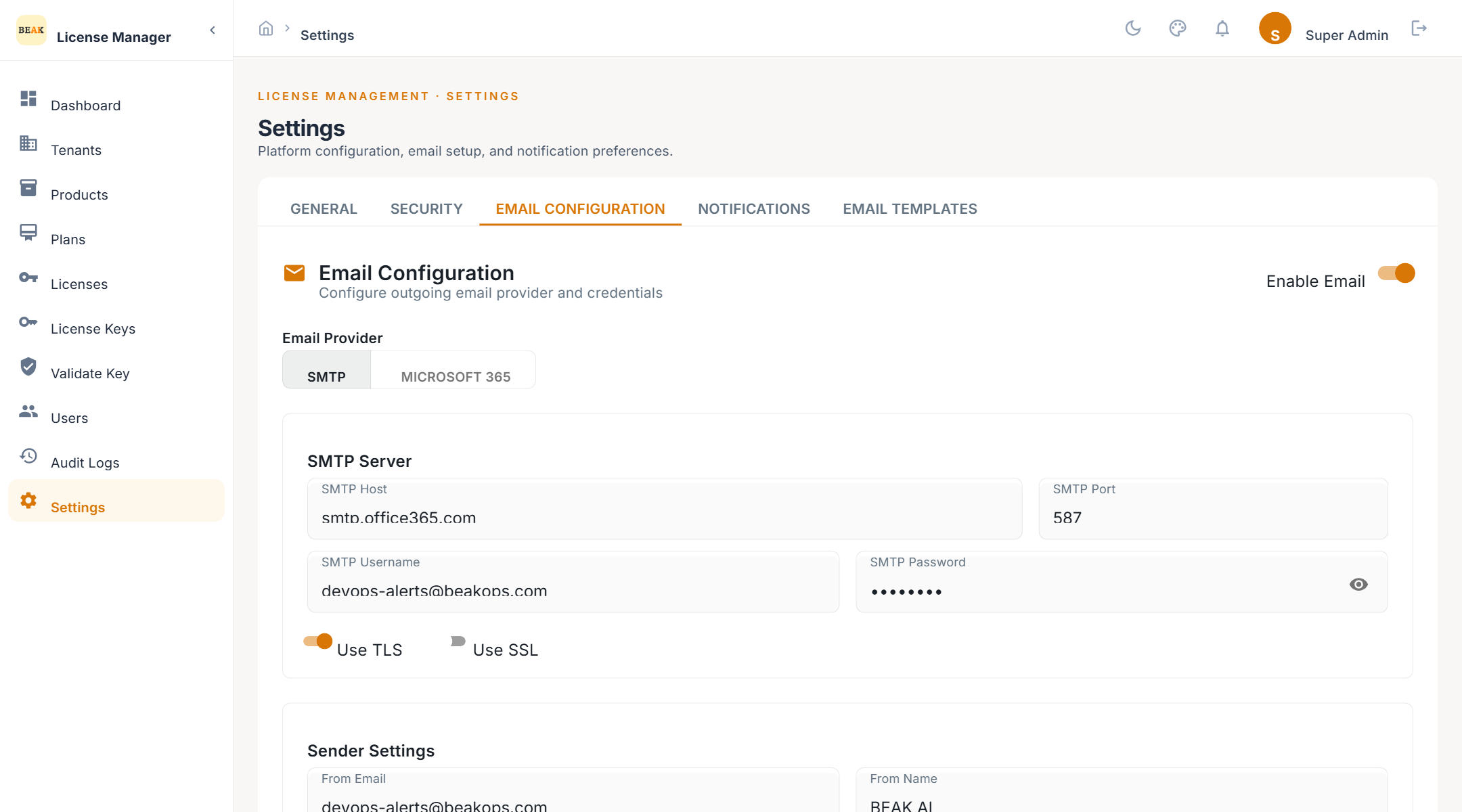
SMTP Server
- SMTP Host and SMTP Port — Your mail relay
- SMTP Username and SMTP Password — Credentials for the relay
- Use TLS or Use SSL — Transport security, as your relay requires
Microsoft 365 / Azure AD App Registration
- Tenant ID (Directory ID), Client ID (Application ID), Client Secret — From the app registration in Entra ID
- Sender Email Address — The mailbox the app sends as
- Authority URL and Redirect URI — Optional; only needed for non-default clouds or custom auth flows
The section lists the Required Azure AD API Permissions the app registration must be granted.
Sender Settings
- From Name and From Email — What recipients see
- Reply-To Email — Where replies land
Test Email
Enter a Recipient Email and send a test message to confirm the configuration before enabling notifications.
Notifications
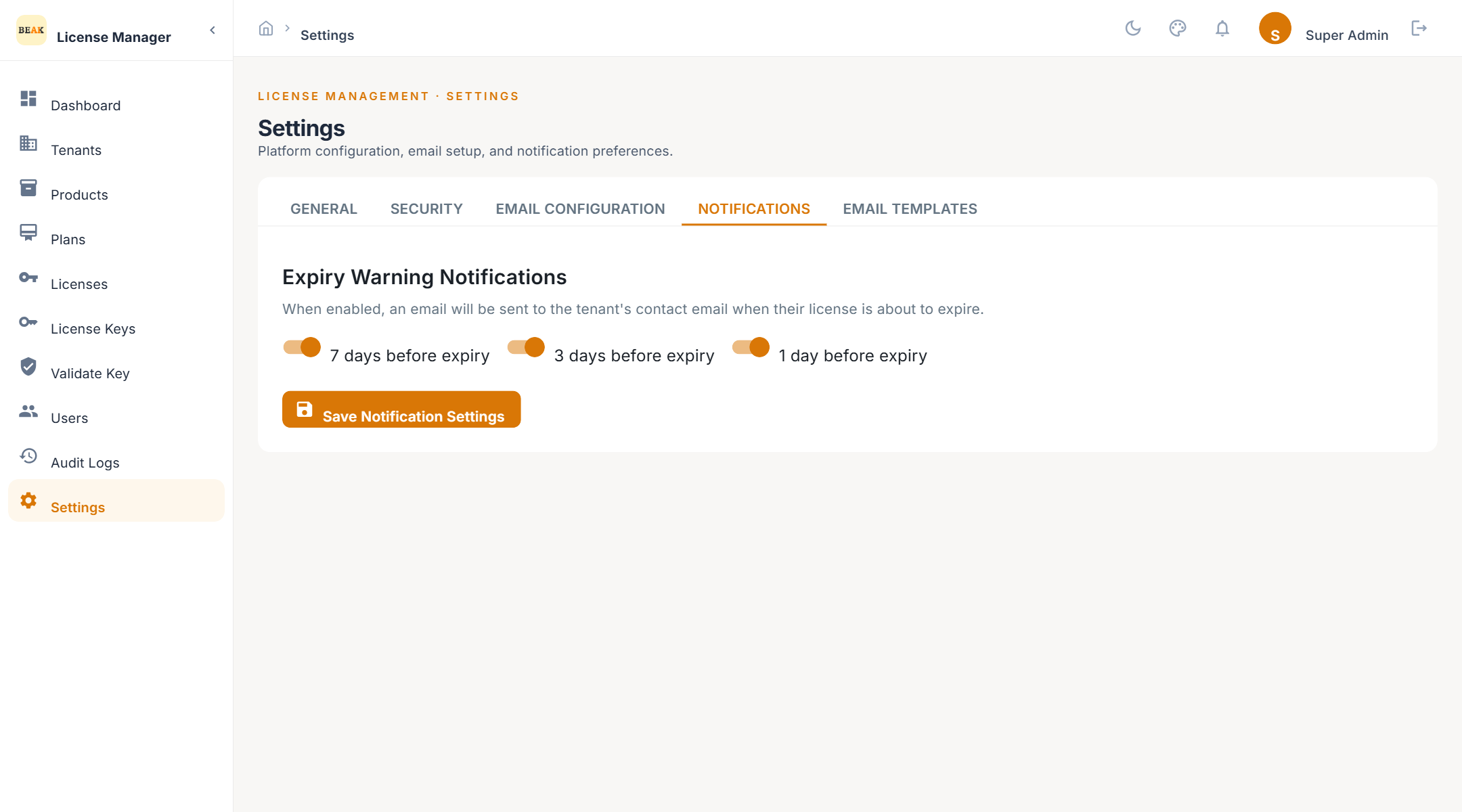
- Enable Email — Master switch for all outbound email.
- Expiry Warning Notifications — Tick 7 days before expiry, 3 days before expiry, and 1 day before expiry as required. The 06:00 job sends a warning to the tenant contact for each licence reaching one of the selected thresholds.
Email Templates
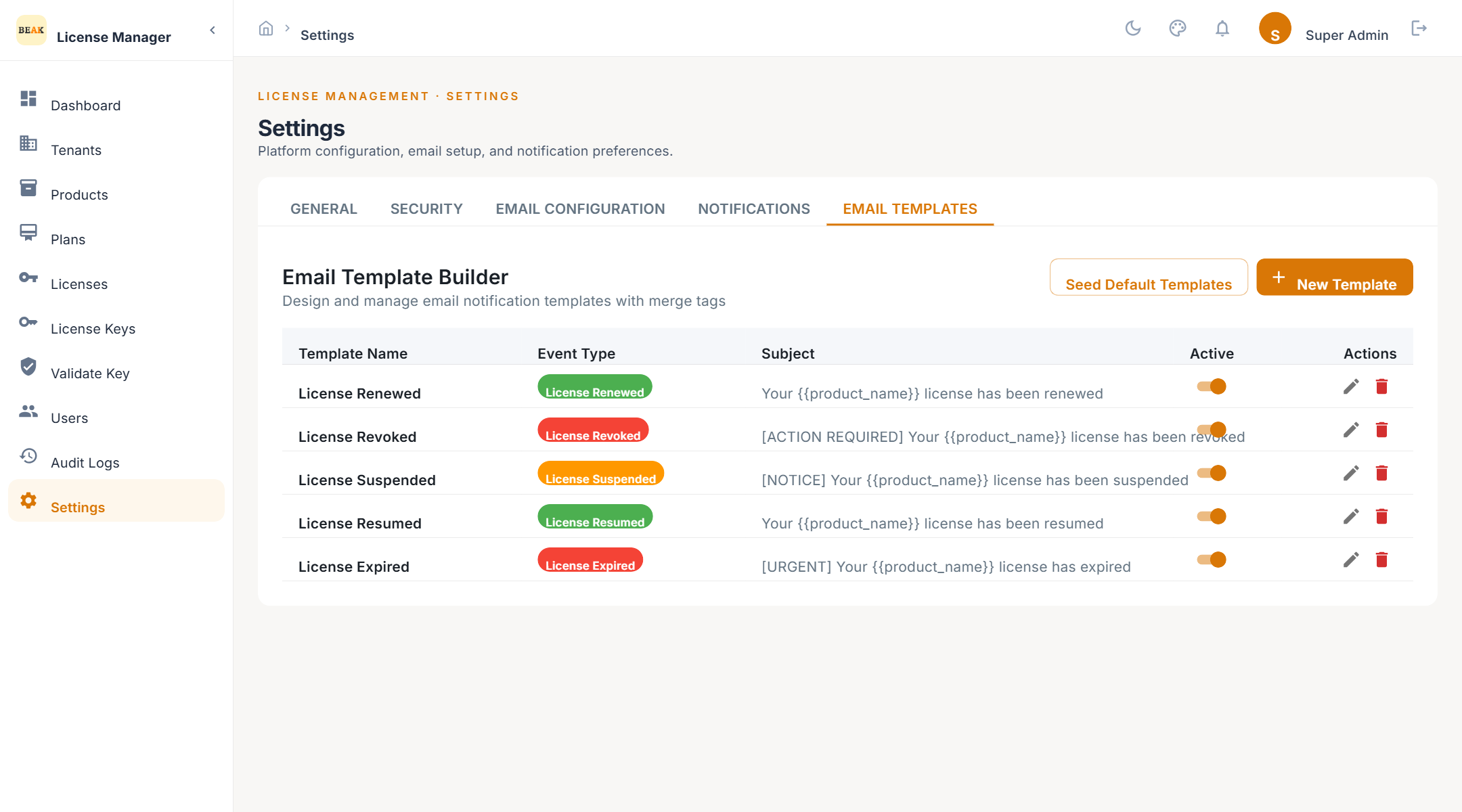
Templates control the wording of the emails sent when a licence changes state. Each template has:
- Template Name — Your label for it
- Event Type — One of
License Renewed,License Revoked,License Suspended,License Resumed,License Expired - Subject Line and Email Body — Built in the template builder; placeholders insert the tenant, product, plan, and dates
- Active — Whether this template is used for its event
Use Seed Defaults to create a starting template for every event type, then edit the wording.
Best Practices
- Send a test email after every change — Delivery problems otherwise surface only when a customer misses a key.
- Keep all three expiry thresholds on — 7, 3, and 1 days gives customers a runway and a final reminder.
- One active template per event — Deactivate superseded templates rather than deleting them, so past wording remains reviewable.