Dashboard
The Dashboard is the landing page after sign-in. It gives an operator a one-screen view of the licensing estate: how many tenants and products exist, how many licences are live, which licences expire soon, and what changed recently.
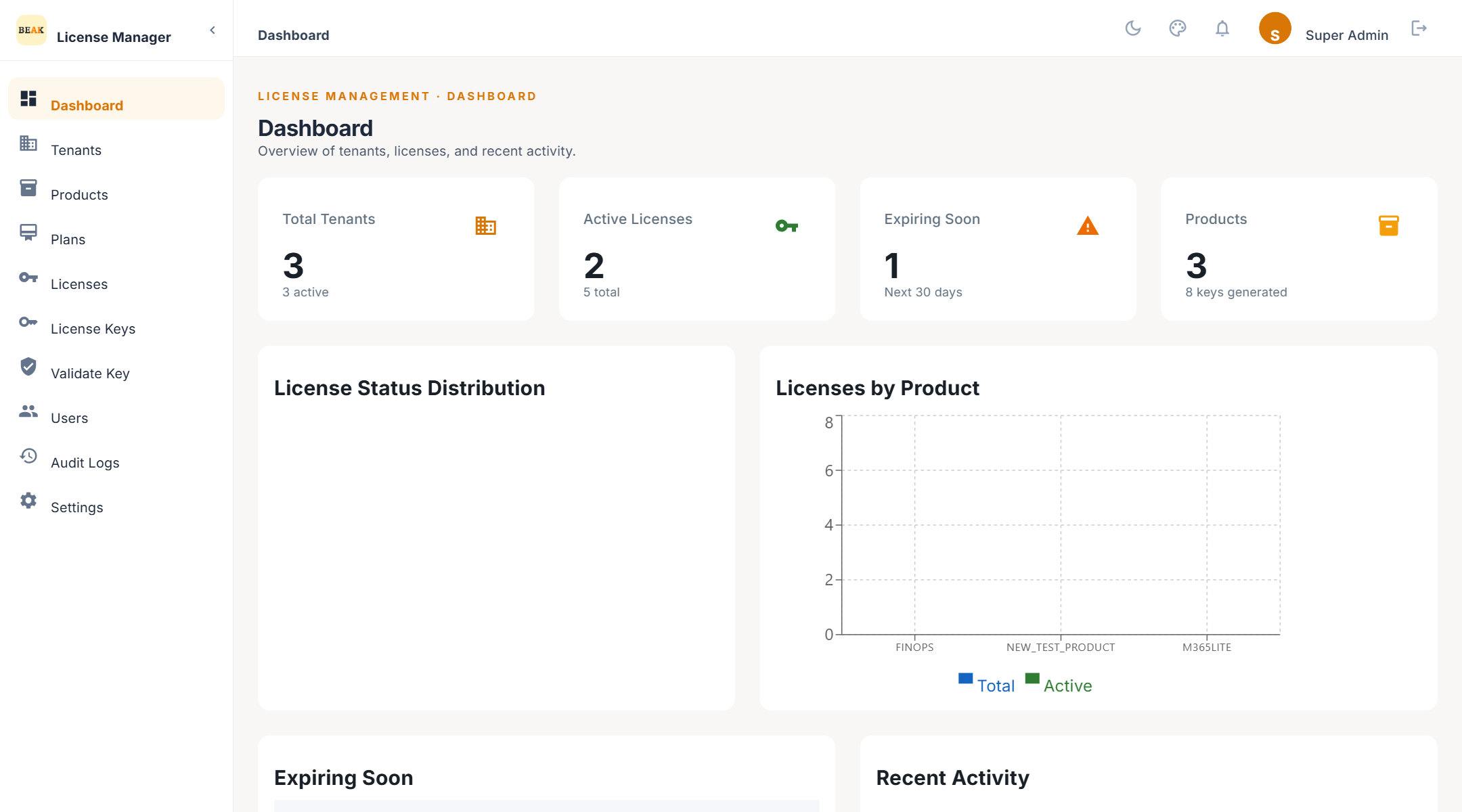
Summary Cards
- Total Tenants — The number of customer organisations registered, active or not.
- Active Licenses — Licences whose status is
ActiveorActivated, meaning validation currently succeeds for them. - Expiring Soon — Licences whose end date falls within the next 30 days.
- Products — The number of products in the catalogue.
License Status Distribution
A breakdown of all licences by status — Draft, Active, Activated, Suspended, Pending Renewal, Expired, and Revoked. A growing Expired or Suspended share is the first sign that renewals are not being followed up.
Product Distribution
The share of licences per product. Use it to see which products carry the licensing volume and which have been registered but not yet licensed.
Expiring Soon
The licences that end within the next 30 days, with tenant, product, plan, and the exact expiry date. Open a row to reach the licence's detail page and renew it from there.
Note: The same licences receive automated expiry-warning emails at 7, 3, and 1 days before the end date when email notifications are enabled. See Settings.
Recent Activity
The latest entries from the audit log — licence creations, status changes, key generations, and sign-ins — with the acting user and a timestamp. The full history is on the Audit Logs page.
Best Practices
- Check Expiring Soon weekly — Renewals initiated before the end date keep the licence
Active; renewals after expiry work too, but the product will have refused validation in between. - Watch for licences stuck in
Draft— A draft has no key and cannot be validated. Activate it or generate a key once the commercial terms are agreed.